

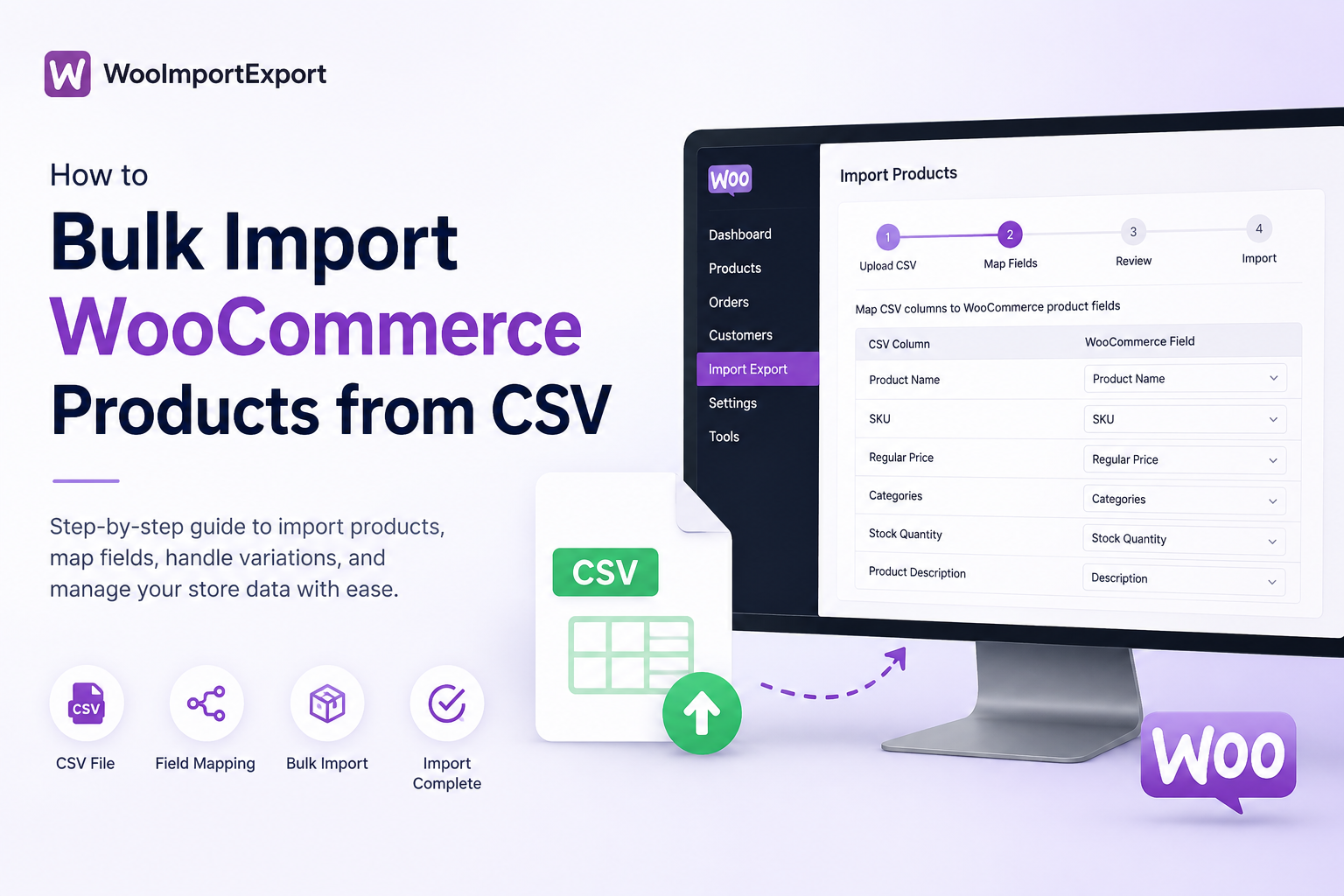

Adding fifty products to WooCommerce by hand is tedious. Adding five hundred is a different kind of problem entirely. Someone ends up typing the same category name into forty product pages, missing a SKU on row 212, and re-entering prices after a typo ships to the live store. This is exactly the situation where a WooCommerce product import from a well-prepared CSV file saves hours, and sometimes days, of repetitive work.
This guide walks through the entire process: what product import actually means, how to prepare a CSV that WooCommerce will accept without a fight, how to map columns correctly, how to handle simple and variable products, and how to fix the import errors that show up almost every time on a first attempt.
Quick Answer
To bulk import WooCommerce products from CSV, prepare a spreadsheet with the required columns (name, SKU, price, stock, categories, and images), save it as a standard CSV file, then use WooCommerce’s built-in importer or a dedicated import plugin to upload the file, map each column to the correct WooCommerce field, and run the import. Review the results afterward to confirm prices, stock levels, categories, and images landed where expected.
What Is WooCommerce Product Import?
WooCommerce product import is the process of adding or updating product data in bulk using a structured file, most commonly a CSV, instead of creating each product one at a time through the WordPress admin.
Store owners typically reach for a product import in situations like these:
- Launching a new store with an existing product catalog from a supplier or wholesaler
- Adding hundreds of products at once instead of manually filling out product pages
- Updating existing catalog data, such as revising prices across an entire category
- Moving products between two WooCommerce installations, for example, from a staging site to production
- Managing supplier catalogs that arrive as spreadsheets on a recurring schedule
- Migrating product information from another platform like Shopify or Magento into WooCommerce
In all of these cases, the underlying idea is the same: instead of touching each product individually, you prepare the data once in a file and let WooCommerce (or an import tool) apply it in bulk.
When Should You Bulk Import WooCommerce Products?
A CSV import makes sense whenever the number of products, or the frequency of changes, makes manual entry impractical. Common situations include:
- Launching a new store with 50 or more products already documented in a spreadsheet
- Receiving a supplier’s product feed that updates weekly or monthly
- Running a seasonal catalog refresh (adding a holiday collection, retiring last season’s items)
- Correcting pricing errors across dozens or hundreds of SKUs at once
- Re-categorizing an entire product catalog after a site redesign
- Consolidating product data from multiple vendors into one consistent format
If you’re only adding two or three products, manual entry is usually still faster. Bulk import earns its value once the row count climbs into the dozens.
What Product Data Can You Import into WooCommerce?
WooCommerce accepts a fairly wide set of product fields through CSV import. The most commonly used ones include
| Field | Applies To |
|---|---|
| Product name | All products |
| SKU | All products |
| Description | All products |
| Short description | All products |
| Regular price | All products |
| Sale price | All products |
| Stock quantity | All products |
| Stock status | All products |
| Categories | All products |
| Tags | All products |
| Product type (simple, variable, grouped) | All products |
| Attributes | Simple and variable products |
| Variations | Variable products only |
| Images | All products |
| Shipping class, weight, dimensions | All products |
| Tax class and tax status | All products |
| Visibility (catalog, search, hidden) | All products |
The key distinction to understand before you start is between simple products, which have a single price and stock level, and variable products, which have a parent product plus multiple variations (size, color, and so on), each with its own SKU, price, and stock. Getting this distinction wrong in your CSV is one of the most common reasons an import produces messy results, so it’s worth planning for it before you build the file.
How to Prepare a WooCommerce Product CSV File
Most import problems trace back to the CSV file itself, not the import tool. A few minutes spent cleaning the data before upload saves a lot of troubleshooting afterward.
- Choose the required columns. At minimum, include product name, SKU, price, and product type. Add stock, categories, and images if you’re managing inventory and organization from the same file.
- Keep column names consistent. If you’re updating a catalog over time, use the same header names every time so mapping stays predictable.
- Clean product data. Strip stray HTML, trailing spaces, and inconsistent capitalization from names and descriptions before import.
- Check SKUs. Every SKU should be unique. Duplicate SKUs are one of the fastest ways to end up with products overwriting each other unintentionally.
- Validate prices and stock values. Prices should be plain numbers (no currency symbols), and stock quantities should be whole numbers.
- Prepare categories and tags. Decide on your final category names in advance. WooCommerce will often create a new category automatically if the name in your CSV doesn’t exactly match an existing one, which quietly produces duplicate categories.
- Check image URLs. Each image URL needs to be publicly accessible and point directly to the image file, not to a webpage that contains the image.
- Review variable-product data. Confirm that variation rows correctly reference their parent product and that attribute values are spelled identically across rows.
- Remove unnecessary formatting. Merged cells, extra header rows, and embedded formulas from spreadsheet software can all break a clean CSV export.
- Save the file in a compatible CSV format. UTF-8 encoding is generally the safest choice, particularly if your product names or descriptions include accented characters or symbols.
Here’s a simple example of what a few CSV columns might look like:
| CSV Column | Example Value | Purpose |
|---|---|---|
| name | Cotton Crew Neck T-Shirt | Product title shown on the store |
| sku | TSHIRT-001 | Unique identifier for the product |
| regular_price | 19.99 | Base selling price |
| stock_quantity | 120 | Units currently available |
| categories | Apparel > T-Shirts | Where the product appears in store navigation |
If you’re still deciding which file format fits your workflow best, this comparison of CSV, XML, and Google Sheets for WooCommerce data import walks through the tradeoffs of each. For most standard product imports, CSV remains the simplest and most widely supported option, which is part of why it’s still the default format across nearly every WooCommerce import tool.
Before running a large import, it’s also worth reviewing a pre-import checklist. This rundown of best practices before importing data into WooCommerce covers a few checks that are easy to skip when you’re in a hurry to get a catalog live.
How to Bulk Import WooCommerce Products from CSV
Once your CSV file is clean, the actual import follows a fairly consistent workflow, whether you’re using WooCommerce’s built-in importer or a dedicated plugin like WooImportExport.
Step 1: Prepare the CSV. Confirm your columns, clean your data, and save the file following the guidelines above.
Step 2: Open the WooCommerce import workflow. In the WordPress admin, this is under Products, then Import (or the import screen of your chosen plugin).
Step 3: Upload the CSV. Select the file from your computer and start the upload.
Step 4: Select the appropriate product data type. Confirm whether you’re importing new products, updating existing ones, or both.
Step 5: Map CSV columns to WooCommerce fields. This is where each column header in your file gets matched to the corresponding field in WooCommerce, such as name, price, or SKU.
Step 6: Review the mapped fields. Before running anything, check that every important column has a mapping and that nothing critical is left unmatched.
Step 7: Configure import options. Decide how the import should handle existing products, for example whether matching SKUs should be updated, skipped, or imported as new products.
Step 8: Run the import. Start the process and let it complete, particularly for larger files that may take a few minutes.
Step 9: Review the import results. Check the summary for how many products were created, updated, or skipped, and note any rows that failed.
Step 10: Verify the products in WooCommerce. Open a sample of imported products directly in the store to confirm the data landed correctly.
This is where a dedicated WooCommerce CSV importer tends to help beyond what the default WooCommerce importer offers. With WooImportExport, you can map CSV columns automatically where the headers already match WooCommerce fields, and manually assign anything the plugin can’t recognize on its own. Larger files are processed in batches so they don’t time out mid-import, and every import run is recorded in a history log, which makes it easier to confirm exactly what happened if something doesn’t look right afterward. If a product’s ID or SKU already exists, you can choose whether that record is skipped, updated, or imported as a new product, which is useful when you’re running the same supplier feed on a recurring basis.
For a broader look at how import and export fits into everyday store management, not just one-off product uploads, this guide to managing WooCommerce store data in one place covers how products, orders, and customer data all connect through the same workflow.
How to Map CSV Columns to WooCommerce Product Fields
Column mapping is the step where your file’s headers get matched to WooCommerce’s internal field names. It matters because your CSV rarely uses the exact same labels WooCommerce expects, especially if the file came from another platform, an ERP system, a supplier, or a spreadsheet someone built manually.
A few typical mappings look like this:
- CSV column
product_namemaps to Product Name - CSV column
skumaps to SKU - CSV column
regular_pricemaps to regular price - CSV column
stock_quantitymaps to Stock Quantity
Mapping errors are quiet. Nothing crashes when a column is mapped incorrectly, but the resulting product might show the wrong price, missing stock data, or a description dropped into the wrong field entirely. This is why the review step (Step 6 above) matters as much as the mapping step itself: a quick check before running the import catches most of these mistakes before they reach the live store.
How to Import Simple and Variable Products
Importing Simple Products
Simple products are the more straightforward case. Each row in your CSV represents one product with one price, one stock quantity, and one SKU. As long as your columns are mapped correctly, this is generally a smooth import with few surprises.
Importing Variable Products
Variable products need more structure. A variable product import typically involves:
- A parent row that defines the product name, description, and available attributes (like Size or color)
- Separate variation rows, each representing one specific combination of attribute values
- Variation-specific SKUs, so each size or color has its own unique identifier
- Variation-specific prices, since a large size or premium color may cost more than the base variant
- Variation-specific stock levels, tracked independently per variation
The parent and child relationship has to be represented correctly in the file, usually by referencing the parent product’s SKU or ID on each variation row. If that link is broken or inconsistent, variations can end up detached from their parent product, or attributes can fail to display correctly on the product page. Testing variable-product imports with a small file first, five or six products with a couple of variations each, is a reliable way to confirm the structure works before scaling up to a full catalog.
How to Handle Product Categories, Tags, Attributes, and Images
Categories, tags, attributes, and images are the parts of a product import most likely to need cleanup after the fact, even when the core product data (name, price, SKU) imports without issue.
Common problems include:
- Incorrect category names, where a small typo or inconsistent capitalization creates a duplicate category instead of matching the existing one
- Inconsistent tags, such as “T-Shirt” and “T-Shirts” being treated as two separate tags
- Missing attributes, particularly for variable products where an attribute wasn’t defined in WooCommerce before the import ran
- Invalid image URLs, where the link points to a page rather than the actual image file, or the image is hosted somewhere that blocks external access
- Duplicate products, usually caused by inconsistent SKUs across import runs
- Incorrectly structured variations, where variation rows aren’t properly linked to their parent product
Cleaning these fields in the spreadsheet before import, rather than fixing them one by one afterward in WooCommerce, is almost always the faster path.
How to Update Existing WooCommerce Products Using CSV
There’s an important difference between importing brand-new products and updating products that already exist in your store. A new-product import creates fresh entries. An update import needs to match each row in your CSV against an existing product, usually by SKU or product ID, and then apply the changes.
SKU consistency is critical here. If a SKU in your update file doesn’t exactly match the SKU already in WooCommerce, the import may create a duplicate product instead of updating the intended one. This is one of the more common ways stores end up with two versions of the same product sitting side by side in the catalog.
Before running a large update, particularly one touching prices or stock across hundreds of products, it’s worth exporting a current backup of your product data and spot-checking a handful of rows in your update file against what’s currently live. This is especially important because bulk price or stock changes are hard to reverse manually if something in the file was wrong.
How to Verify Products After Import
Once an import finishes, don’t treat the summary screen as the final word. A quick verification pass catches problems while they’re still easy to fix. Check:
- Product count against what you expected to import
- SKUs, confirming no duplicates or missing values
- Prices, particularly regular and sale price together
- Stock quantities and stock status
- Categories, checking for accidental duplicate categories
- Images, confirming they display correctly on the product page
- Attributes, especially for variable products
- Variations, confirming each is linked to the correct parent
- Product visibility, so nothing is accidentally hidden from catalog or search
- Product URLs, checking for broken links or unexpected slugs
- Front-end display, by actually viewing a sample of products on the live site
Verification matters most immediately after a large import, while the changes are still fresh and easy to trace back to a specific file or mapping decision. Waiting a week to notice a pricing error across 300 products is a much bigger cleanup job than catching it the same day.
For a fuller picture of how import and export processes fit together across a WooCommerce store, from products through orders and customer records, this complete guide to WooCommerce import and export for faster store management is a useful next read.
Common WooCommerce CSV Import Problems and How to Fix Them
- Products are not importing. Usually caused by a malformed CSV (extra header rows, incorrect encoding) or missing required fields like name or product type. Re-check the file structure and required columns.
- Columns are mapped incorrectly. Review the mapping screen before running the import rather than after, and confirm every important field has a match.
- Prices are missing or incorrect. Often caused by currency symbols, commas, or extra spaces in the price column. Prices should be plain numbers.
- Images are not appearing. Check that each image URL is publicly accessible and points directly to the image file rather than a webpage.
- Categories are not assigned correctly. Confirm category names in the CSV exactly match existing categories in WooCommerce, including capitalization.
- Variable products are structured incorrectly. Confirm variation rows correctly reference their parent product and that attribute values are spelled consistently across all rows.
- Duplicate products appear. Almost always an SKU mismatch between the import file and existing products. Standardize SKUs before running the import.
- Stock values are incorrect. Check for blank cells, text mixed into numeric fields, or a mismatch between stock quantity and stock status columns.
- Special characters cause issues. Save the CSV with UTF-8 encoding to avoid garbled characters in product names or descriptions.
- Some rows fail while others import successfully. This usually points to a data issue on the specific failed rows, such as a missing required field or an invalid value. Reviewing the import log for the specific error on those rows is the fastest way to isolate the cause.
WooCommerce CSV Import Best Practices
- Back up your product data before making major changes
- Test with a small CSV first, five to ten rows, before running the full file
- Keep SKUs consistent across every import and export
- Clean data (spacing, formatting, encoding) before import, not after
- Validate image URLs before uploading the file
- Review column mapping carefully before running the import
- Test variable products separately from simple products
- Check a sample of imported products directly on the front end
- Keep a copy of the original CSV in case you need to reference it later
- Review logs or results after every import, even ones that appear to have succeeded
WooCommerce Product Import: CSV vs Manual Entry
| Factor | Manual Entry | CSV Import |
|---|---|---|
| Speed | Slow for more than a handful of products | Fast, even for large catalogs |
| Large catalogs | Impractical beyond a few dozen items | Well suited, minutes instead of hours |
| Data consistency | Prone to human error and typos | Consistent, as long as the source file is clean |
| Bulk updates | Requires editing each product individually | Can update hundreds of products in one run |
| Initial setup | No setup required, just start typing. | Requires preparing and cleaning a file first |
| Error checking | Errors are caught one product at a time. | Errors can be reviewed in bulk via logs and mapping screens. |
Manual entry still has a place for small catalogs or a handful of one-off products, where the setup time for a CSV import isn’t worth it. Once the product count or the frequency of updates grows, a WooCommerce product import consistently saves time, provided the source file is clean before you start.
Final Thoughts
A successful WooCommerce product import comes down to preparation more than the tool doing the importing. A clean CSV, consistent SKUs, correctly structured variations, and a careful review of the column mapping will get you further than any plugin feature on its own. Once those fundamentals are in place, tools like WooImportExport make the actual upload, mapping, and verification steps faster and easier to track, but the groundwork in the spreadsheet is what determines whether the import goes smoothly the first time.





WP All Import Alternative for WooCommerce Stores (2026)
October 21, 2026[…] For a full walkthrough, read the guide on how to bulk import WooCommerce products from CSV. […]
WooCommerce Import Orders from CSV (No Duplicates)
October 23, 2026[…] also point to products. If your catalog is not in the store yet, import it first. The WooCommerce product import guide covers that step. For a full migration, the safe order is categories, tags, products, customers, […]
Shopify to WooCommerce Migration: Step-by-Step Guide
October 26, 2026[…] guide shows how auto-matching works. Run ten rows first and check them. Then run the full file. The WooCommerce product import guide walks through the whole […]