

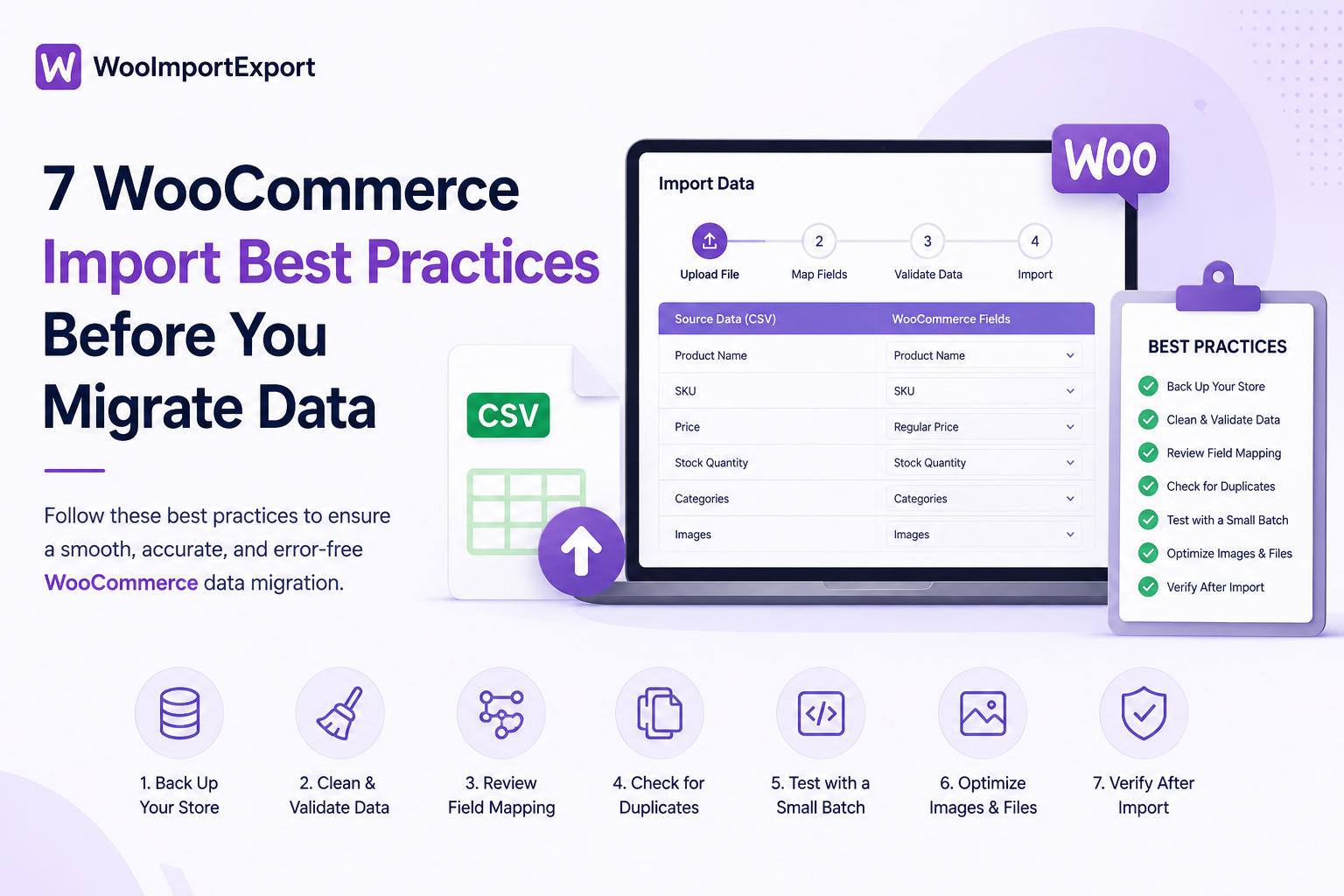

The damage from a bad WooCommerce import best practice rarely shows up during the import itself. It shows up two days later, when a customer calls asking why their order total looks wrong, or when someone on your team notices that 400 products lost their categories overnight. By then, the file that caused it is long closed, and untangling what happened costs far more time than the ten minutes it would have taken to prevent it.
Most import guides tell you to “back up your site” and move on. That’s true but incomplete. The failures that actually happen come from specific, avoidable gaps: a duplicate SKU column, a mismatched ID, and a category name typo that silently creates a new category instead of matching the existing one. This is a practical rundown of what actually goes wrong before an import and the specific checks that catch each problem before it reaches your live store.
1. Back Up Before You Touch Anything, and Verify the Backup Actually Restores
“Back up first” is standard advice, but the part people skip is confirming the backup is usable. A backup plugin that silently failed last night, or one that only covers the database and not media files, gives you false confidence right up until you need it.
Before running any import that updates or creates more than a handful of records:
- Take a full backup covering both the database and the uploads folder (product images matter here, not just rows of data).
- If your host or backup plugin supports it, do a test restore to a staging environment, not your live site, just to confirm the backup file isn’t corrupted or partial.
- Note the exact timestamp of the backup somewhere you’ll actually see it: a sticky note, a shared doc, or a Slack message to yourself. When something goes wrong three hours later, you want to know precisely what point you’re rolling back to.
If your import tool has its own rollback feature (some track exactly which records a specific import run touched, letting you undo just that batch instead of the whole database), that’s a second layer, not a replacement for a full site backup. Rollback undoes what the import changed; it doesn’t help if the import corrupted something the tool didn’t anticipate. This same backup discipline matters even more if the import is part of a full store migration rather than a routine data update, since there’s more at stake if something goes wrong partway through.
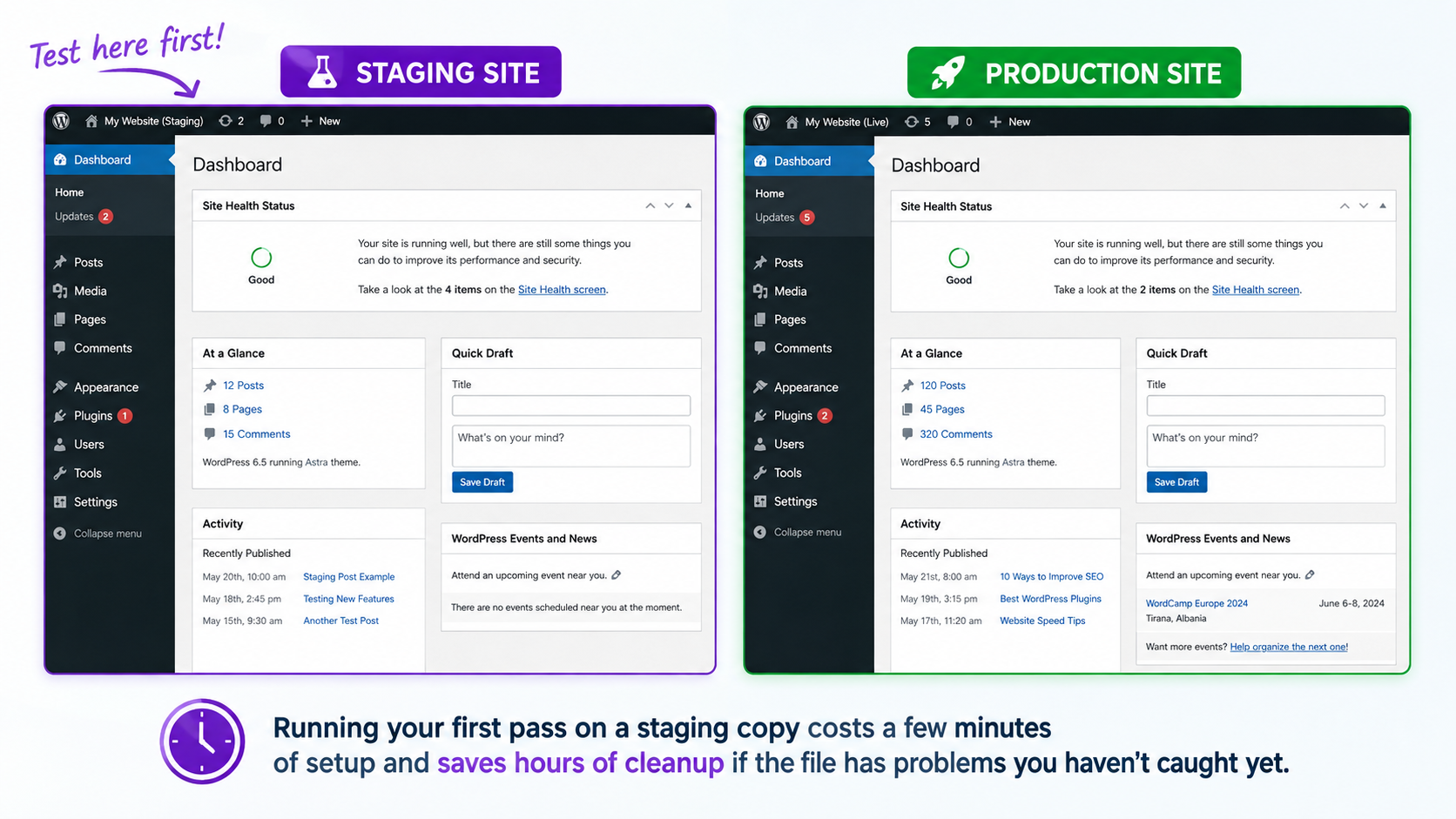
2. Test the Import on a Staging Site First, With the Real File
Testing with a trimmed sample of 5 rows feels efficient, but it hides problems that only appear at scale: a formula error that only shows up in row 340, an encoding issue that only affects product names with accented characters, and a memory limit that only gets hit past a few thousand records.
The better approach: run the full, real file on a staging copy of your site. If you don’t have a staging environment set up, most hosts offer one-click staging clones now, and it’s worth the ten minutes of setup before any import that touches your entire catalog or customer base.
What to actually check after a staging run, not just “did it finish”:
- Spot-check 10 to 15 records across different sections of the file (start, middle, and end), not just the first few rows, since column mapping errors sometimes only surface partway through a file if formatting shifts.
- Confirm category and tag assignments landed on the existing taxonomy terms, not new duplicate ones (this is one of the most common silent failures, covered in detail below).
- Check that images are attached correctly, not just that the import “succeeded.” A failed image fetch often doesn’t throw an error; it just leaves the product without an image.
- If the import includes prices or stock levels, verify a handful against your source spreadsheet manually. Off-by-one column shifts are common and easy to miss visually.
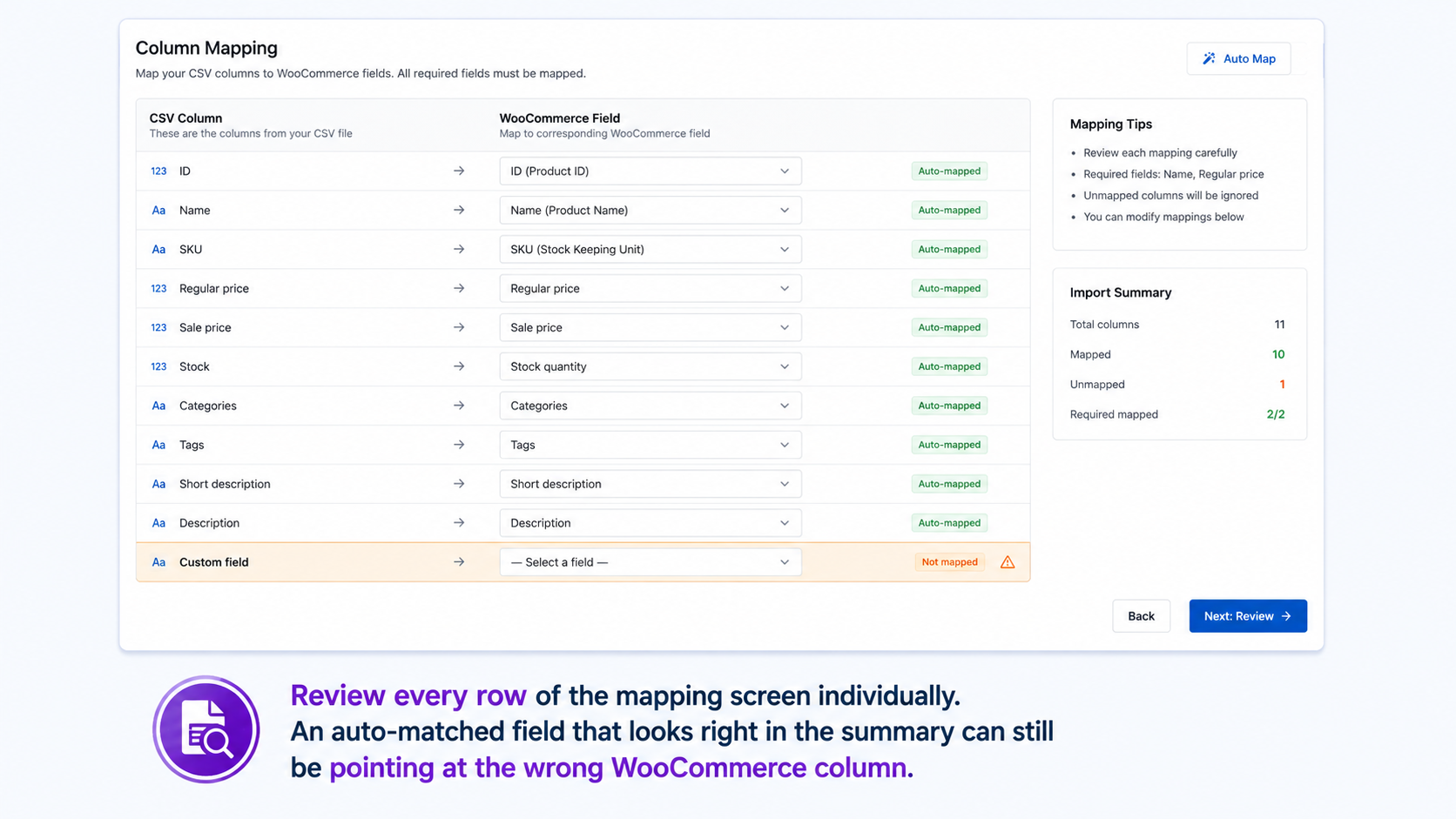
3. Get Your Column Mapping Exactly Right; Don’t Trust Auto-Mapping Blindly
Most import tools, including WooImportExport, will auto-map recognizable column headers to WooCommerce fields. This works well for standard headers like, or stock_quantity. It works less reliably for:
- Ambiguous headers. A column called
price“could” might mean regular price, sale price, or a custom field from another system entirely, depending on your source file. Auto-mapping tools guess based on common patterns, and the guess isn’t always right. - Custom fields and ACF data. Anything outside WooCommerce’s core fields (subscription data, custom checkout fields, and theme-specific meta) almost never auto-maps correctly, since there’s no universal naming convention for it.
- Multi-value fields. Categories, tags, and attributes are often stored as comma- or pipe-separated values in a single column. If your file uses a different separator than the tool expects, the mapping can look correct in the preview while actually splitting the data wrong.
Always review the mapping screen manually before running the real import, field by field, not just glancing at the summary. This is the single highest-leverage five minutes in the entire process, because a wrong mapping doesn’t usually throw an error. It just writes the wrong data to the wrong field, and you won’t notice until someone downstream does.
4. Decide Your Duplicate and ID Handling Rule Before You Run Anything
This is the step most people skip entirely, and it’s the one most likely to cause real damage. Every import tool needs to know what to do when a record in your file matches something that already exists in your store. The three common rules are
- Skip. Leave the existing record untouched if a match is found. Safe, but means genuine updates in your file get ignored too.
- Update. Overwrite the existing record’s fields with whatever’s in the file. Fast, but dangerous if your file has blank cells, since a blank in the import file can wipe a field that had real data in your store.
- Create new. Add a new record regardless of matches. Useful for genuinely new data, but if your matching logic is off, this is how you end up with 200 duplicate products overnight.
The part that trips people up: matching usually happens on SKU, email, or ID, and if your export file (from an old system or a previous store) has inconsistent SKUs, extra whitespace, or case differences (ABC-123 vs abc-123), records that should match won’t, and you’ll get duplicates instead of updates.
Before running an import with “update” selected, pull 5 to 10 existing records from your store and confirm the matching field in your import file is formatted identically, with no extra spaces, consistent casing, and no leading zeros dropped by a spreadsheet program (a classic issue when SKUs are numeric and Excel silently strips leading zeros on save).
5. Pre-Create or Verify Your Taxonomy Terms
Categories, tags, and product attributes are where “it looked fine in the preview” imports quietly go wrong. If your import file has a category listed as “Home & Garden” but your store’s existing category is “Home and Garden” (no ampersand), most import tools won’t recognize these as the same term. Depending on your tool’s settings, this either fails silently or creates a second, near-duplicate category, splitting your catalog across two versions of what should be one taxonomy term.
This gets worse at scale. A file with inconsistent capitalization or spacing across a few hundred rows can generate dozens of duplicate categories in a single import, and cleaning that up after the fact means manually merging terms and reassigning every product that landed in the wrong one.
Before importing:
- Export your store’s current category, tag, and attribute list and compare it against what’s in your import file, ideally with a simple spreadsheet formula flagging anything that doesn’t match exactly.
- Standardize naming in your source file to match your existing taxonomy exactly, rather than relying on the import to reconcile small differences.
- For genuinely new categories your import will create, decide in advance whether that’s intentional, so you’re not surprised by a dozen new categories appearing in your store menu after the fact.
6. Check File Encoding and Formatting Before Upload, Not After
A file that looks perfectly normal in Excel can cause silent corruption on import if it’s saved in the wrong encoding. This shows up as
- Accented characters or special symbols (é, ñ, curly quotes, and em dashes copied from a Word document) turning into garbled characters or question marks in your product titles and descriptions
- Numbers stored as text losing precision, or worse, a price like
19.00importing as19and displaying without the expected decimal formatting on your storefront - Date fields importing in the wrong format entirely (MM/DD/YYYY vs DD/MM/YYYY), which is especially risky for order data where dates matter for reporting
The fix: save your file as UTF-8 encoded CSV specifically, not just “CSV” from Excel’s default save dialog, which sometimes defaults to a regional encoding that doesn’t handle special characters correctly. Most spreadsheet programs have a “CSV UTF-8” export option distinct from the plain “CSV” option, and it matters more than it looks like it should. If you’re still deciding between CSV, XML, or a connected Google Sheet as your source format, that choice affects how encoding and formatting issues show up in the first place.
If you’re working with a large or complex file, open it in a plain text editor (not just Excel) at least once before importing to catch obvious formatting issues like an extra comma inside a product description that shifts every subsequent column in that row.
7. Run a Small Batch on Production Before the Full File
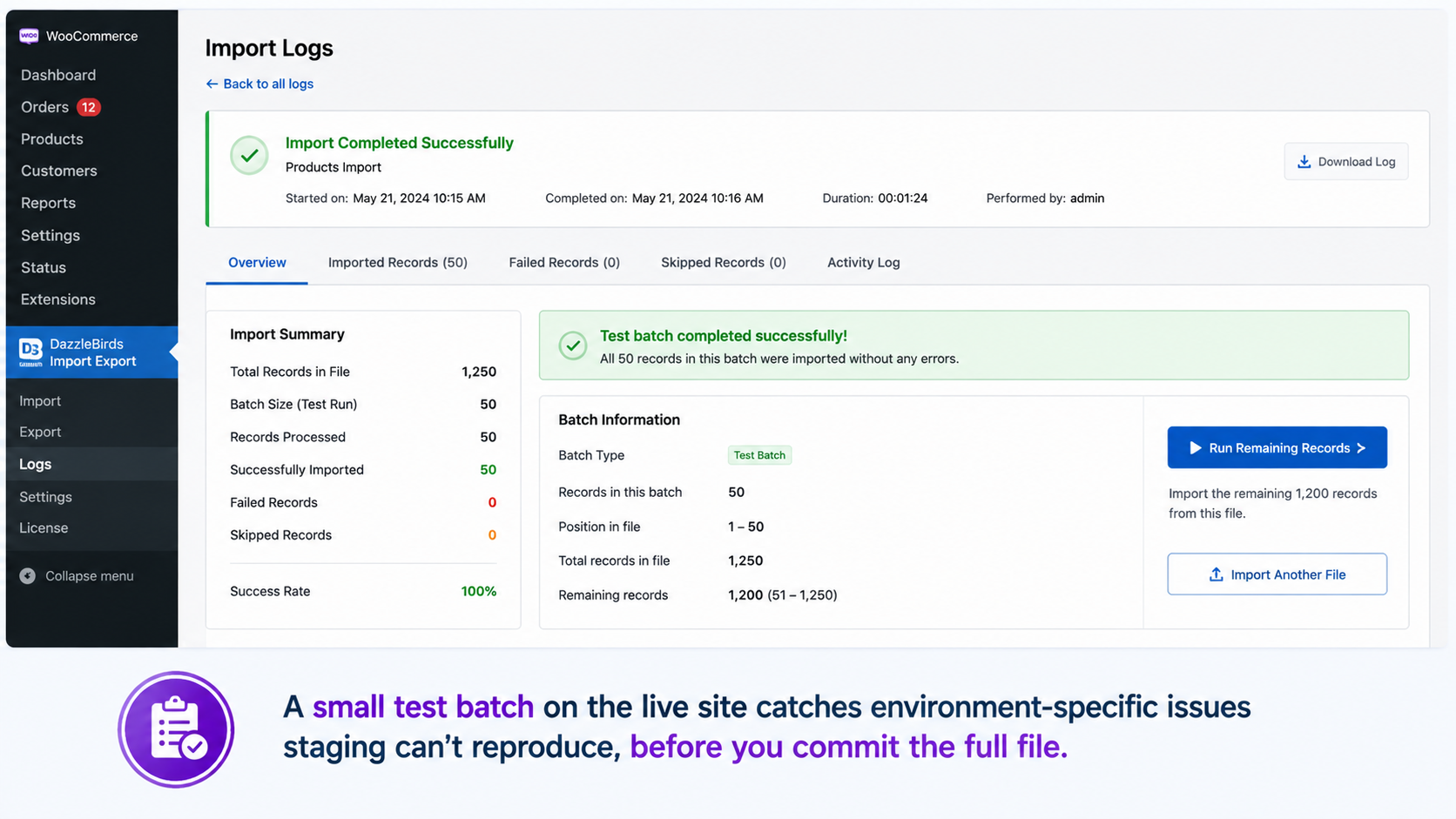
Even after a clean staging test, production environments sometimes behave differently, with different plugin versions, different server configurations, and different cached data. Before committing your entire file to your live store, run a small, real batch first—10 to 20 records, ideally including a few edge cases (a product with variations, an order with a refund, a customer with a non-standard character in their name).
Check those records manually on the live site: correct pricing, correct images, correct category assignments, and correct status. Only after confirming the small batch behaves exactly as expected should you run the remaining records.
This step catches the narrow category of problems that staging can’t: production-specific caching plugins interfering with newly imported content, a live payment gateway plugin reacting differently to imported order statuses than a staging environment would, or file permission differences between environments that affect image imports specifically.
A Real Scenario: What This Looks Like Combined
These steps sound theoretical in isolation, so here’s how they actually play out on a typical migration.
Say you’re consolidating a supplier’s product spreadsheet into your store, 800 rows, including SKUs, prices, stock levels, and category assignments. The supplier’s file uses “Kitchen & Dining” while your store has an existing “Kitchen and Dining” category from three years ago. Without the taxonomy check in step 5, this import creates a second, near-identical category, and 300 products end up split across two versions of the same section, invisible to customers browsing your main category, since it’s not the one linked in your site navigation.
Meanwhile, the supplier’s SKUs are formatted as SKU-00123 in their system, but a spreadsheet program you used to clean the file earlier stripped the leading zeros, turning it into SKU-123. Your store’s existing products use the original format. Without checking the matching field formatting in step 4, every one of those 800 products imports as a brand-new duplicate product instead of updating the existing 300 that were already in your catalog, doubling your product count overnight.
Both of these are silent failures. Nothing errors out. The import reports “800 records processed successfully,” and on the surface, everything looks fine. It’s only when someone notices the category count jumped or the product total looks wrong that the actual problem surfaces, usually days later, by which point untangling which products are duplicates and which categories should merge is a manual, row-by-row cleanup job.
Running through steps 4 and 5 before this import, comparing SKU formatting against existing records, and comparing category names against your existing taxonomy, catches both issues in about five minutes, before a single row gets written to your database.
What to Check Immediately After Any WooCommerce Import Best Practices Completes
Beyond the batch-testing step above, a few checks apply to every import, large or small, once it’s actually finished:
- Record count. Does the number of records the tool reports match what you expected from your source file? A mismatch, even a small one, is worth investigating before you consider the import done.
- Spot-check across the full range, not just the first few records that ran, since problems sometimes appear partway through a large batch, not at the start.
- Front-end check, not just admin. A product can look correct in the WooCommerce admin list but display incorrectly on the actual product page, especially with variations, custom fields, or theme-specific formatting. Check a handful of live pages, not just the dashboard.
- Check your import tool’s log, not just the success message. Most tools that report “import complete” also log individual row-level warnings or skipped records separately from the overall success status. A “completed” import can still have quietly skipped 12 rows that didn’t match the expected format.
The Real Cost of Skipping These Steps
None of this is complicated. Most of it takes fifteen to twenty minutes total for a typical import. The reason it gets skipped is that it feels unnecessary right up until the one time it isn’t, and by then the fix costs far more than the preparation would have.
A duplicate category from a mismatched taxonomy term might mean an afternoon of manually merging and reassigning products. A bad “update” match on customer records might mean overwritten order history that can’t be reconstructed. A skipped backup verification might mean a full day lost to piecing a store back together from partial data. The fifteen minutes of preparation is cheap. The recovery almost never is.
Quick Pre-Import Checklist
- Full backup taken and verified restorable, not just “backup completed”
- Real file tested on staging, not a trimmed sample
- Column mapping reviewed manually, field by field
- Duplicate/ID matching rule chosen deliberately, and matching field formatting checked
- Existing taxonomy terms compared against the import file for naming mismatches
- File saved as UTF-8 CSV, checked in a plain text editor for obvious formatting issues
- Small batch run on production first, checked manually, before the full file
- Record count, front-end display, and import logs checked after completion
Treat this list as a five-minute pass before every import that touches more than a handful of records, not a one-time setup step. The stores that avoid import disasters aren’t the ones with the fanciest tools. They’re the ones that run this same short checklist every single time, even when it feels unnecessary.




