

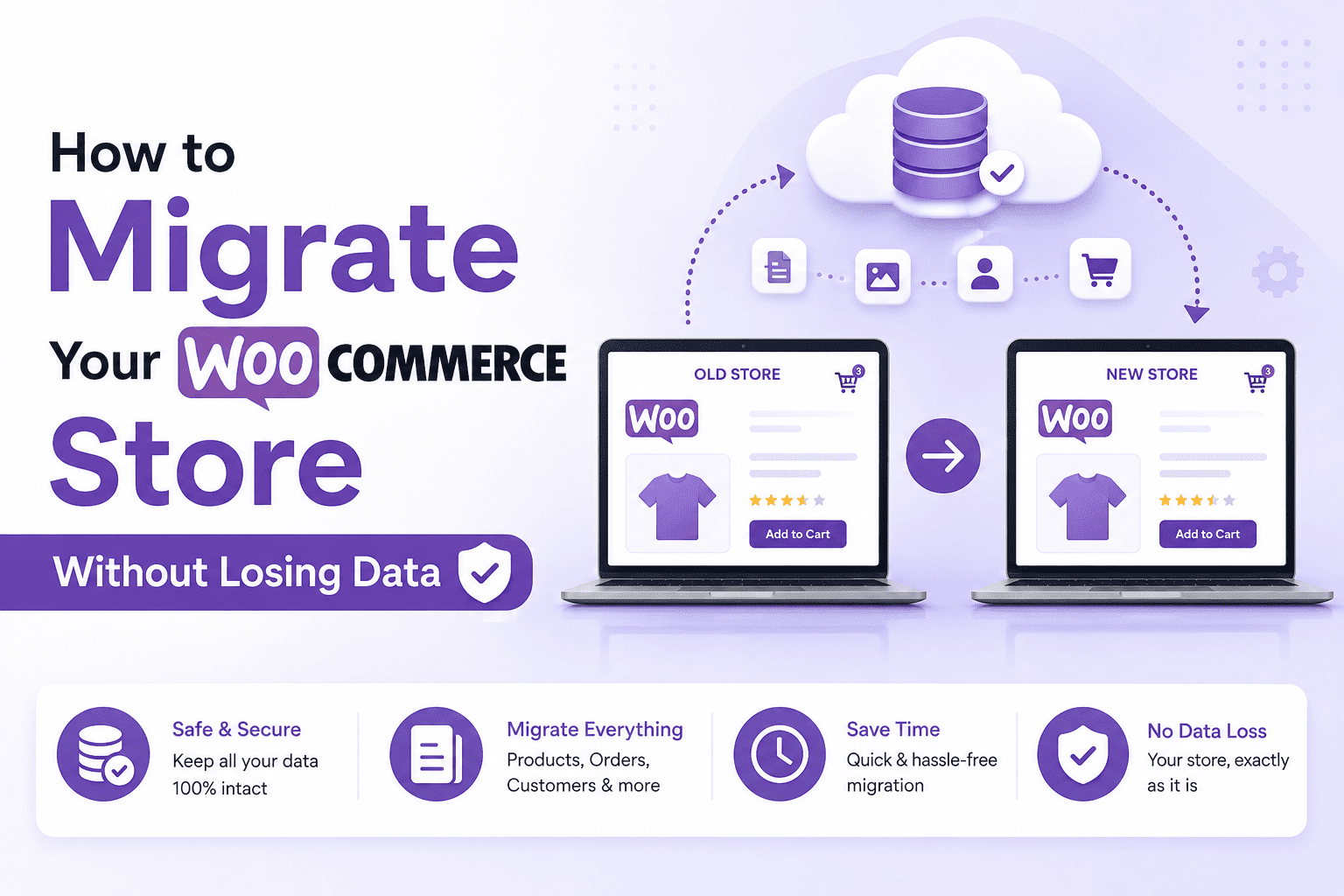

How to Migrate Your WooCommerce Store Without Losing Data
WooCommerce store migration can be a challenging process when a website contains hundreds or thousands of products, customer records, orders, categories, images, and other important information. Moving a WooCommerce store to a new domain, hosting provider, or website environment requires careful planning to avoid missing data, broken links, incorrect product information, or disruptions to store operations.
A well-planned migration can make the process smoother and reduce the risk of data loss. Before starting the migration, it is important to understand what information needs to be transferred, prepare the new environment, create backups, and test the migrated data before making the new store live.
1. Create a Complete Backup
The first step in a WooCommerce store migration is creating a complete backup of the existing website. Your backup should include the WordPress files and database as well as important WooCommerce-related information.
A reliable backup gives you a recovery option if something goes wrong during the migration. Store owners should verify that the backup is complete and accessible before beginning the transfer.
2. Prepare the New WooCommerce Store
Before transferring your data, prepare the destination website. Install WordPress and WooCommerce, configure the required hosting environment, and make sure the new website is ready to receive the migrated information.
Check important settings such as database compatibility, PHP requirements, WordPress configuration, WooCommerce settings, and available storage. Preparing the destination environment in advance can reduce migration problems.
3. Identify the Data You Need to Migrate
Not every WooCommerce migration requires transferring exactly the same information. Create a checklist of the data that needs to be moved.
Important information may include:
- Products and product variations
- Categories and tags
- Product descriptions
- Product images
- SKUs and prices
- Inventory information
- Customer records
- Orders
- Coupons
- Reviews
- Store settings
Having a clear migration checklist helps ensure that important information is not accidentally overlooked.
4. Export Your WooCommerce Data
Once the existing store has been backed up and the new environment is prepared, export the required data. Depending on your migration requirements, you may need to export products, customers, orders, categories, reviews, and other WooCommerce information.
Using a structured import and export workflow can make large-scale data transfers easier. When working with product catalogues, CSV files can provide a convenient way to organise and review information before importing it into the new store.
5. Check Product Images and URLs
Images are an important part of any WooCommerce store. During migration, verify that product images are transferred correctly and that their URLs work on the new website.
Check featured images, gallery images, thumbnails, and other media associated with products. Missing images can negatively affect the appearance and usability of the new store.
It is also important to review internal links and external URLs after migration. Broken links should be identified and corrected before the new website is launched.
6. Import the Data into the New Store
After preparing and validating your exported information, begin importing the data into the new WooCommerce environment.
For large stores, it is often better to perform the migration in stages instead of transferring everything at once. Start with a small sample of products and related information. Check the results carefully before completing the larger import.
Verify product names, descriptions, prices, SKUs, categories, variations, stock status, and images after the test import.
7. Verify Customers and Orders
Customer and order information requires additional attention because it is important business data. After importing these records, verify that the information appears correctly in the new store.
Check customer details, order numbers, order statuses, product information, prices, dates, and other relevant fields. If historical orders are important for business reporting, confirm that the complete order history has been transferred correctly.
8. Test the New Store Before Launch
Never make the migrated store live immediately after importing data without testing it.
Test the website from a customer’s perspective. Browse product pages, search for products, add products to the cart, test checkout, verify payment-related settings, and check important forms.
Also test the administration area to make sure products, customers, orders, and other information can be managed correctly.
9. Check SEO Elements and Redirects
A WooCommerce migration can affect search engine visibility if URLs change. Before launching the new website, review page URLs, product URLs, category URLs, metadata, canonical settings, and internal links.
If URLs have changed, create appropriate redirects from old URLs to their corresponding new URLs. This can help users and search engines reach the correct pages.
Make WooCommerce Migration Easier
A successful WooCommerce store migration requires preparation, careful data handling, testing, and verification. Creating a complete backup, preparing the new environment, identifying required data, exporting information, checking images and URLs, importing data carefully, and testing the new website can significantly reduce the risk of problems.
For stores with large product catalogues or complex data requirements, a dedicated WooCommerce import and export solution can simplify the process. By using structured data management workflows and carefully validating the results, businesses can move their WooCommerce stores more efficiently while protecting important products, customers, orders, and other store information.




