


You want to leave BigCommerce. You want more control, lower fees, and a store you fully own. WooCommerce gives you that. The hard part is the move.
A BigCommerce to WooCommerce migration can feel risky. You worry about lost products, broken links, and falling traffic. The good news is that a CSV-based move keeps you in control. You export your data, fix it, and import it step by step.
This guide shows you how to do it. You will learn what moves, what does not, and how to protect your SEO. Each step is short and clear. You can follow along even if you are not a developer.
How Do I Move From BigCommerce to WooCommerce?
Here is the short answer. You follow six steps:
- Back up your BigCommerce store and list your data.
- Set up a fresh WooCommerce store.
- Export your products, customers, and orders to CSV.
- Map the BigCommerce columns to WooCommerce columns.
- Import the cleaned CSV files into WooCommerce.
- Redirect old URLs, test everything, and go live.
Most stores finish the move in one to three weeks. Small stores can finish in days. Large stores with thousands of products need more time for testing.
The CSV method works well because it is open and simple. You can see every row. You can fix errors before they reach your live store. You also do not need to pay for a locked tool.
Why Store Owners Migrate BigCommerce to WooCommerce
BigCommerce is a solid platform. Still, many owners outgrow it. Here are the common reasons they switch.
Lower long-term cost. BigCommerce charges a monthly plan fee. It also raises your plan as your sales grow. WooCommerce is free. You pay for hosting, plugins, and themes. For many stores, the total price drops.
Full ownership. With WooCommerce, you own your files and your database. No platform can change the rules on you.
More flexibility. WooCommerce runs on WordPress. You can add thousands of plugins. You can change almost any part of your store.
Better content tools. WordPress is a top blogging platform. You can build guides, landing pages, and product stories with ease. That helps your SEO.
If these points fit your goals, a move makes sense. Next, check what you can and cannot bring over.
What Data Can You Migrate (and What You Cannot)?
Before you start, know what moves cleanly. This saves you from surprises later.
Data That Migrates Well by CSV
- Products and SKUs
- Product descriptions and short descriptions
- Prices, sale prices, and weights
- Categories and brands
- Product images (by URL)
- Stock levels
- Customers (names, emails, addresses)
- Past orders (as records)
- Coupons
- Blog posts and pages (by content export)
What Data Cannot Be Migrated Easily From BigCommerce
Some items will not move with a CSV file. Plan to rebuild them by hand or with a plugin.
- Your theme and design. BigCommerce themes do not work in WordPress. Pick a new WooCommerce theme.
- Apps and integrations. BigCommerce apps do not transfer. Find a WooCommerce plugin for each one.
- Customer passwords. BigCommerce hashes them. WooCommerce cannot read them. Customers must reset their passwords.
- Product reviews. These often sit outside the standard export. Check your review app for its own export.
- Complex product options and modifiers. Variations need extra care. You often rebuild them in the right format.
- Abandoned carts and some reports. Treat these as lost data.
- Payment gateway tokens. Saved cards do not move. Customers will need to enter them again.
- Store settings. Shipping zones, tax rules, and checkout rules need manual setup.
Write this list down for your own store. It becomes your to-do list for later.
Step 1: Audit and Back Up Your BigCommerce Store
Start with a full audit. Count your products, categories, customers, and orders. Note which pages bring the most traffic. You will protect those pages first.
Next, back up everything. Export all your data before you touch anything. Save the files in a safe folder. Keep a second copy in cloud storage.
Also run a crawl of your site. Use a tool such as Screaming Frog. Export the list of all live URLs. You will need this list for redirects later.
For a deeper safety plan, read our guide on how to migrate your WooCommerce store without losing data. It covers backups and testing in detail.
Step 2: Set Up Your New WooCommerce Store
Build your new store before you move any data. Do not use your live domain yet. Use a staging site or a temporary address.
Here is a simple setup list:
- Buy hosting that fits WooCommerce. Pick fast, managed hosting if you can.
- Install WordPress and then WooCommerce.
- Choose a theme. Keep it light and fast.
- Set up currency, tax, and shipping zones.
- Connect your payment gateways.
- Install an import and export plugin for product files.
A good import tool saves hours. It lets you map columns, schedule imports, and fix errors fast. You can get the WooCommerce Product Import Export plugin to handle the CSV work in this guide.
Set your permalink structure now. Go to Settings, then Permalinks. Choose a clean option such as “Post name.” This matters for your URLs later.
Step 3: Export Your Products From BigCommerce to CSV
Can BigCommerce export products to CSV? Yes. BigCommerce has a built-in export tool. You do not need an app for this step.
Here is how to do it:
- Log in to your BigCommerce admin.
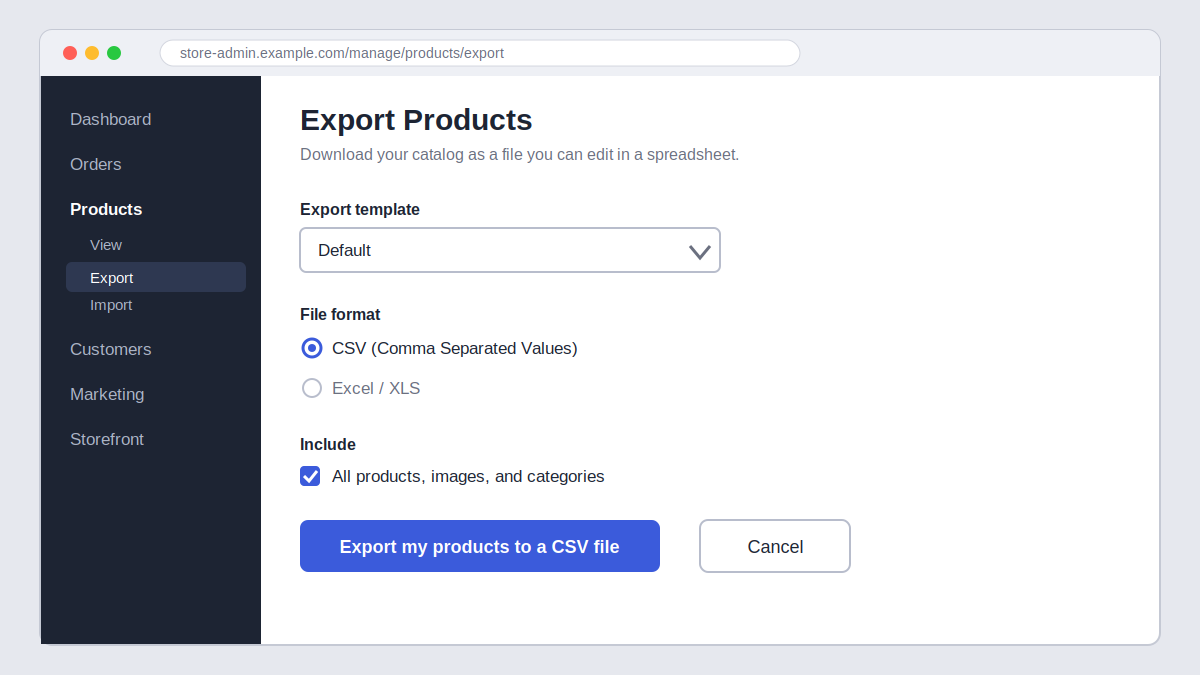
- Go to Products, then Export.
- Choose an export template. The default one works for most stores.
- Pick the file format. Choose CSV.
- Click Export my products to a CSV file.
- Download the file when it is ready.
You can also export customers and orders. Find the Export option inside each section.
Open the file in a spreadsheet tool. Check that all rows are there. Look for strange symbols in names and descriptions. Fix them now. It is easier to clean data before the import than after.
Image links deserve special care. BigCommerce stores images on its own CDN. Your CSV will hold those links. WooCommerce can fetch images from them during import. Do this before you cancel your BigCommerce plan. If you cancel early, the links may break.
Step 4: Map BigCommerce Columns to WooCommerce Columns
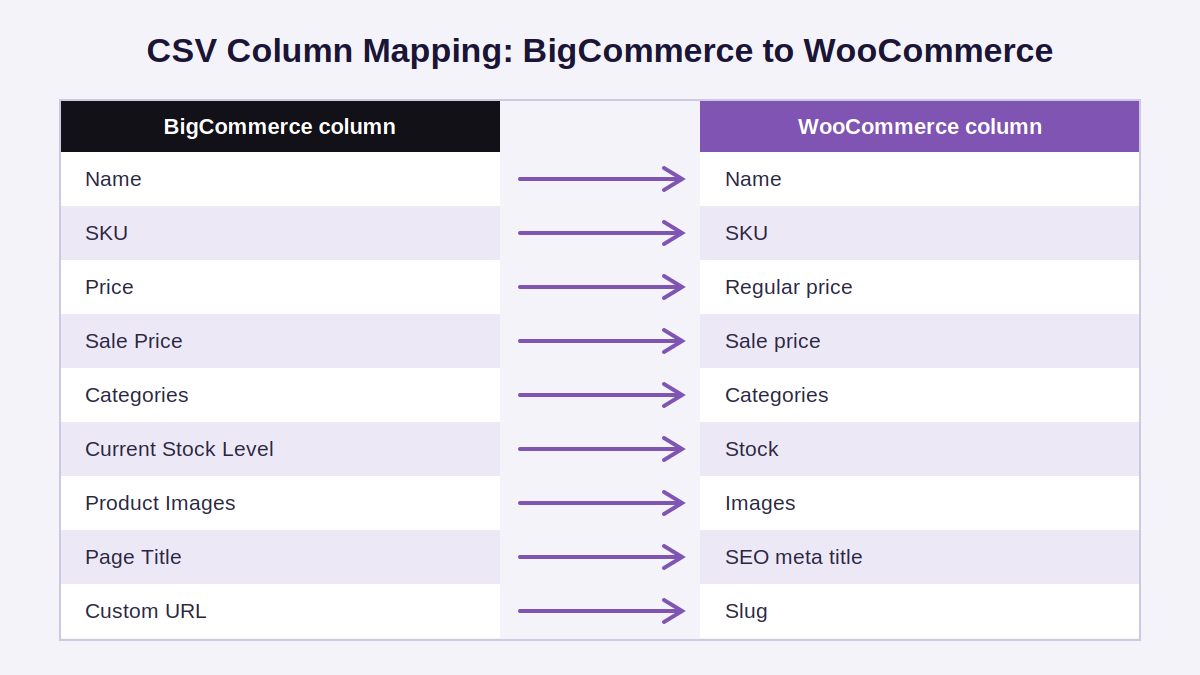
This is the most important step. BigCommerce and WooCommerce use different column names. If you skip mapping, your import will fail or create messy data.
Column names can vary by export template. Use the table below as a guide. Always check your own file.
| BigCommerce column | WooCommerce column | Notes |
|---|---|---|
| Name / Product Name | Name | Direct match |
| SKU / Product Code | SKU | Must be unique |
| Type | Type | Use simple, variable, or grouped |
| Description / Product Description | Description | Check HTML tags |
| Price | Regular price | Use numbers only |
| Sale Price | Sale price | Leave blank if none |
| Weight | Weight | Check your unit |
| Categories / Category | Categories | Use “>” for child categories |
| Brand Name | Brands or Attributes | Needs a brand plugin or attribute |
| Current Stock Level | Stock | Set “Manage stock” to yes |
| Product Images / Product Image File | Images | Use full URLs, comma separated |
| Page Title | Meta title (SEO plugin) | Map to Yoast or Rank Math |
| Meta Description | Meta description (SEO plugin) | Map to your SEO plugin. |
| Custom URL | Slug | Match the old path where possible |
Tips for Clean Mapping
- Fix categories first. BigCommerce uses a slash path. WooCommerce uses a greater-than sign.
- Split variants. BigCommerce lists options in one format. WooCommerce needs a parent row and child rows.
- Keep SKUs unique. Duplicate SKUs cause import errors.
- Remove extra columns. Delete data you do not need.
- Test with 10 rows. Always run a small sample first.
Want to skip the guesswork? Download our BigCommerce column map. It lists every common column and its WooCommerce match. See the button below.
Step 5: Import BigCommerce to WooCommerce With Your CSV File
Now you are ready to import BigCommerce to WooCommerce. Take your time here. Run a small test first.
Follow these steps:
- Open your import tool in WordPress.
- Upload your cleaned CSV file.
- Map each column to the right WooCommerce field.
- Turn on image import if you want images fetched from URLs.
- Run an import of 10 to 20 products.
- Check the results in your product list.
- Fix any errors in your CSV.
- Run the full import.
Big files can time out on weak hosting. Split your CSV into smaller batches. Import 500 to 1,000 products at a time. Many import plugins also let you run imports in batches for you.
After the import, check these items:
- Product names and descriptions
- Prices and sale prices
- Images and galleries
- Categories and tags
- Stock levels
- Variation options
For a full walkthrough of file types, mapping, and errors, read our WooCommerce product import guide. It shows how to handle simple, variable, and grouped products.
Step 6: Move Customers, Orders, and Coupons
Products are only part of your store. Your customers and orders matter too.
Customers. Export your customer list from BigCommerce. Import it into WooCommerce as users. Give each one the “Customer” role. Remember that passwords will not move. Plan an email to tell customers to reset them. Send it just before launch.
Orders. Order history is useful for support and tax records. Import past orders as records. They will not trigger emails or stock changes if you set the import up right. Check your tool for these options.
Coupons. Export your coupon codes. Import them into WooCommerce. Test a few before launch. Percent and fixed discounts usually move fine. Complex rules may need a manual fix.
Content. Move your blog posts and pages too. Copy them over with a content export, or rebuild them by hand. Keep the same headings and text so that your rankings hold.
Step 7: Keep Your URLs and Rankings After Leaving BigCommerce
How do you keep URLs and rankings after leaving BigCommerce? You do two things. You match your old URLs where you can. You redirect the rest with 301 redirects.
URL changes are the top cause of traffic loss in a move. Do this step with care.
Compare Your URL Structures
BigCommerce and WooCommerce build URLs in different ways.
- BigCommerce products often look like
/product-name/ - BigCommerce categories often look like
/category-name/ - WooCommerce products use
/product/product-name/by default - WooCommerce categories use
/product-category/category-name/by default
You can fix this in two ways. First, change your WooCommerce permalink settings to remove the “product” base. Second, set up redirects from every old URL to its new match.
Build a Redirect Map
Use the URL list from your crawl in Step 1. Make a sheet with two columns: old URL and new URL. Then follow these rules:
- Redirect each old URL to the closest new page.
- Use 301 (permanent) redirects, not 302.
- Avoid redirect chains. Send each URL straight to its final page.
- Do not send every old page to your home page. Search engines treat that as a soft 404.
- Redirect your top traffic pages first.
Use a redirect plugin or your server rules to load the map. Many plugins accept a CSV file, so you can bulk upload it.
Protect Your SEO Data
- Move your page titles and meta descriptions. Import them into Yoast or Rank Math.
- Keep your image file names and alt text.
- Keep your internal links working.
- Submit a new XML sitemap in Google Search Console.
- Use the Change of Address tool only if your domain changes.
- Keep your old BigCommerce store live until launch day.
Watch Search Console closely for four to six weeks after launch. Look at crawl errors and drops in clicks. Fix problems fast.
Step 8: Test, Launch, and Monitor
Test before you switch your domain. A small bug can cost real sales.
Use this launch checklist:
- Place a test order with each payment method.
- Check taxes and shipping rates.
- Test coupon codes.
- Check your emails: order, shipping, and password reset.
- View the store on mobile.
- Check page speed.
- Test your top 50 redirects.
- Check your analytics and tracking codes.
When all looks good, point your domain to the new host. Turn on SSL. Then re-check your redirects on the live site.
After launch, keep BigCommerce active for a short time. This helps if you spot missing data. When your store runs well for a few weeks, cancel the old plan.
Common Mistakes When You Migrate BigCommerce to WooCommerce
Avoid these errors. They hurt many stores.
- Skipping the backup. Always keep a full copy of your data.
- Importing without a test. A 10-row test saves hours.
- Cancelling BigCommerce too early. Your image links may break.
- Ignoring redirects. This is the fastest way to lose rankings.
- Forgetting variations. Options need special care in the CSV.
- Not warning customers. Tell them about password resets.
- Launching on a slow host. Speed affects both sales and SEO.
Need Help? Get a Done-for-You Migration
Doing it yourself works well for small stores. Larger stores have more risk. You may have thousands of products, complex variations, or high traffic. In that case, an expert can save you time and stress.
Our team handles the full move. We export your data, map your columns, import your products, and set up your redirects. We also test your store before launch. You pay one clear price and get a working store.
You can also start with our tools. Our plugin handles CSV import and export, so you can run the move yourself and keep full control.
Download the BigCommerce Column Map | Request a Migration Quote




