

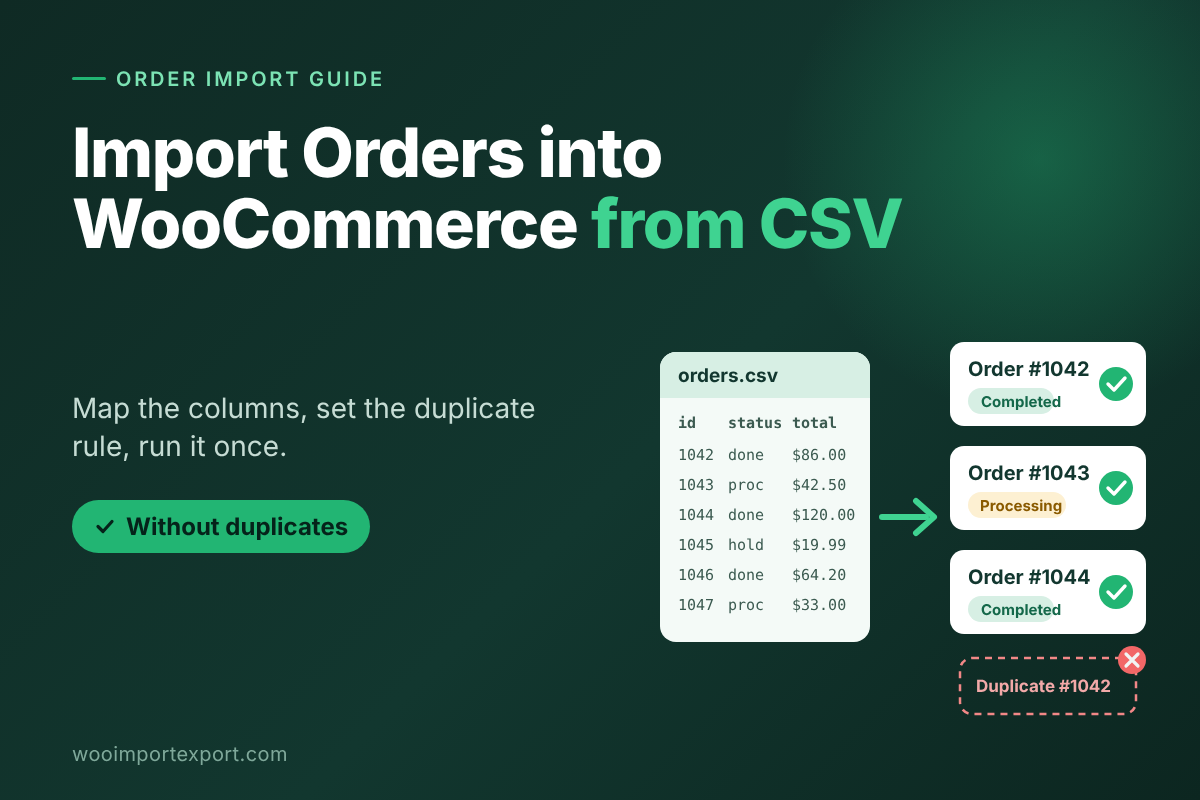

You have a CSV file full of orders. It might come from an old store or from a spreadsheet your team kept by hand. Now you need those orders inside WooCommerce, and you need each one there once, not twice.
That is the tricky part of any WooCommerce import orders job. One missing ID or one wrong setting gives you two copies of every order. Your reports double up. Cleaning the mess takes longer than the import did.
This guide shows you what the file needs, how to run the import, and which setting stops duplicates. It also compares the free plugin with WP All Import.
To import orders, WooCommerce needs a plugin because it has no built-in order importer. Export a few orders first to copy the right columns. Map your file, keep the Order ID column mapped, and test ten rows before you run the full file.
Can WooCommerce Import Orders Without a Plugin?
No. WooCommerce ships with a CSV importer for products. It has no matching tool for orders. You can add an order by hand in the admin, but that works for one order, not five thousand.
So you need a plugin that reads your file and builds each order, with its status, line items, addresses, taxes, fees, coupons, and refunds. It should also let you map your own column names to WooCommerce fields.
The steps below use the free WooImportExport orders plugin. It works with both HPOS and legacy order storage.
What to Put in Your Order CSV Before You Import
Start from an export.
The fastest way to get the format right is to export first. Export five orders from your store with the same plugin. The export file shows the exact column names the importer expects. Match your file to it, and most problems disappear before you start.
Columns that matter most
Each order needs a few core columns.
- Order ID. This is how the plugin tells new orders from existing ones.
- Date and status. Use status names your store already uses, such as processing or completed.
- Billing email and customer ID. Map these if you want orders linked to existing customer accounts. Without them, orders arrive as guest orders.
- The importer reads totals from your file. It does not recalculate them from line items. A blank total column gives you a zero-total order, even when the products attach correctly.
Line items, shipping lines, fee lines, tax lines, coupon lines, refunds, and order notes work differently. Each one packs all of an order’s entries into a single column. The importer recognizes them by column name, so leave those columns alone.
Orders also point to products. If your catalog is not in the store yet, import it first. The WooCommerce product import guide covers that step. For a full migration, the safe order is categories, tags, products, customers, coupons, orders, and then reviews.
Clean the file first.
A few minutes of cleanup saves an hour of fixing.
- Save the file as CSV UTF-8. In Excel, choose Save As, then CSV UTF-8.
- Keep one header row at the top, and delete the empty rows Excel leaves at the bottom. They show up as failures.
- Match the delimiter. Comma is standard, and semicolon is common in European exports.
- Keep money columns as plain numbers, with a dot as the decimal.

How to Import Orders into WooCommerce from CSV, Step by Step
The import wizard has four screens. Add a backup before it and a check after it, and you have the full routine.
Step 1: Back up and test with ten rows.
The importer writes to your live order tables, so back up your database first. Then cut your file down to ten rows. Run that small file, check the orders in WooCommerce, and fix any issue before the full run.
Step 2: Choose orders and an import method.
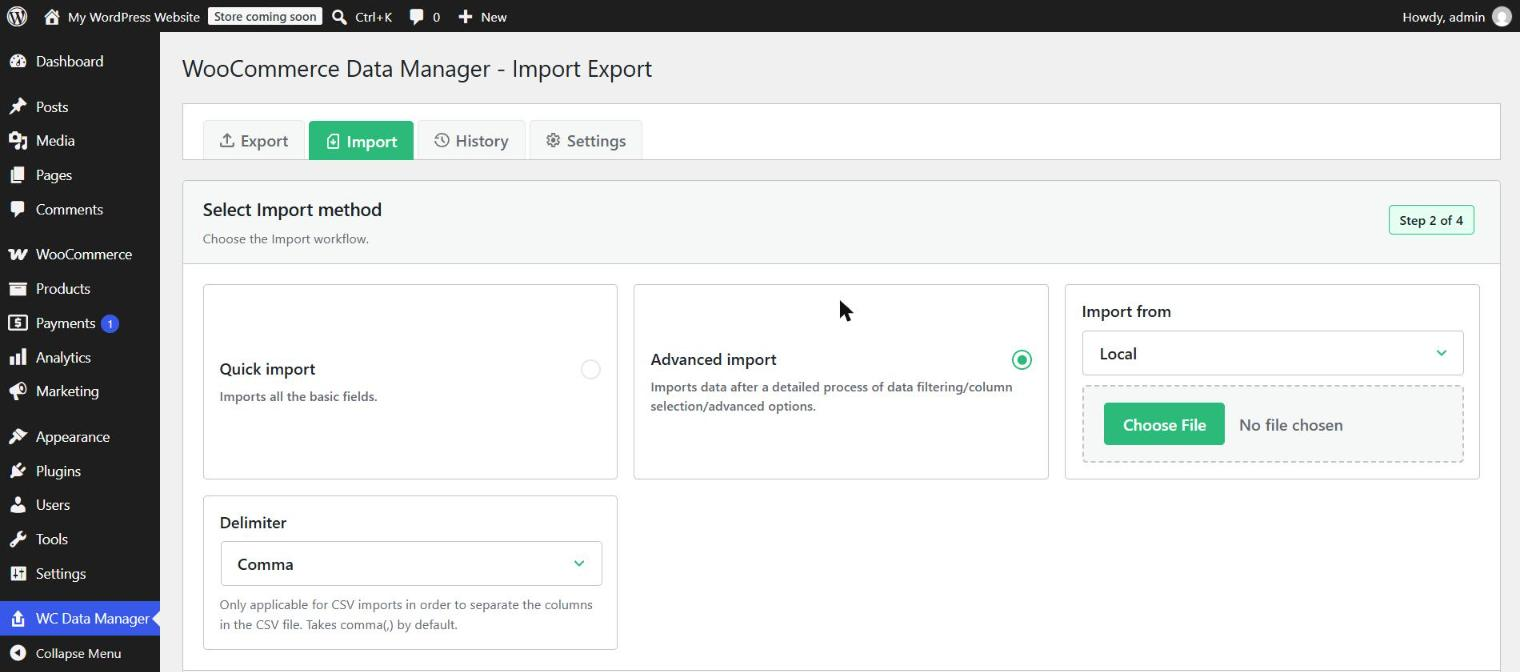
Open the WC Data Manager, then Import. Choose the Orders tile and upload your CSV. Set the delimiter to match your file.
Next, pick a method. Quick Import reads your file as it is and matches headers on its own. It never overwrites an order that already exists. Advanced Import adds the filter and mapping screens. Use it whenever your column names differ from the export.
Step 3: Set the duplicate rule.
On the filters screen, you tell the plugin what to do when a row matches an existing order. People get this setting wrong more than any other, so the next section covers it in detail.
Step 4: Map your columns
Every header in your file appears beside a dropdown of WooCommerce fields. The plugin pre-selects the ones it recognizes. Review each one, fix any mismatch, and leave a dropdown empty to skip that column. The column mapping guide explains how the matching works. Save your mapping as a template, and you can reuse it for the next file.
Mapping is where most WooCommerce import order problems start. A screen can look right and still give the wrong result, so check your ten-row test.
Step 5: Run it and read the result
Small files finish in your browser. Larger files run in batches, so the server does not time out. When the run ends, open the History tab and read four numbers: created, updated, skipped, and failed.
A finished status does not mean every row worked. An import can complete with 300 failed rows, so check the failed count. Turn on import logging before a run you expect to have trouble with. The log shows which row failed and why.
How to Avoid Duplicate Orders When You Import
Keep the order ID mapped.
The plugin matches orders on order ID. If no identifier column is mapped, nothing matches, and every row looks new. You get two of everything. So when an import creates duplicates, check the Order ID mapping first.
Also watch for ID clashes. When you move orders into a store that already has orders, an ID in your file could match an unrelated order. Test on a staging copy first.
Choose Skip or Update.
Skip leaves the existing order exactly as it is. Use it when you only want to add the orders that are missing.
Update overwrites the order with the values in your file. Use it to fix totals or statuses in bulk. But Update writes every mapped column. If someone emptied a column in Excel, that field empties in WooCommerce too. Keep update files narrow: the Order ID plus the two or three fields you want to change.
Creating as new makes a fresh order and keeps the old one, so you end up with both. Avoid it unless you want that.
Quick Import always skips, which makes it the safest choice for a first run.
Roll back if the result looks wrong.
Pro includes a rollback. It deletes the orders an import created and restores the ones it updated. You can undo each import once, and only when it is finished cleanly. Treat it as a safety net, not a replacement for your backup. On the free plugin, restore from your backup instead.
WooCommerce Import Orders: Free vs Pro Comparison
The free plugin handles a one-time import well. Pro adds more file types, automation, and rollback. You can see all seven data types on the features page.
| Feature | Free | Pro |
| Price | $0 | From $99 per year |
| Order and coupon import from CSV | Yes | Yes |
| Column mapping and saved templates | Yes | Yes |
| Batch processing and history log | Yes | Yes |
| HPOS support | Yes | Yes |
| Excel, XML, and TSV files | No | Yes |
| Google Sheets | No | Yes |
| Import from URL, FTP, or SFTP | No | Yes |
| Scheduled imports | No | Yes |
| Rollback an import | No | Yes |
| Support | WordPress.org forum | Priority support |
| Sites covered | Unlimited | 1, 5, or 25 by plan |
Is There a Free Alternative to WP All Import?
Yes. For orders, the free WooImportExport orders plugin is one. WooCommerce’s own importer is free too, but it covers products only. WP All Import’s order import needs the core plugin plus its paid WooCommerce add-on.
What the free plugin handles
It imports and exports orders and coupons from CSV, with column mapping, saved templates, batch processing, and a history log. You can also filter an export by date, status, customer, product, coupon, or order ID.
When free stops being enough
The free plugin reads CSV files only. You need Pro to import WooCommerce orders from Excel, XML, or Google Sheets; to pull files from a URL or FTP; to run schedules; and to use rollback. Pro starts at $99 per year for one site.
Is WP All Import Worth It for a WooCommerce Store?
It depends on your files and how often you import. WP All Import is a mature tool. Its own site reports more than 200,000 active installs. It reads CSV, XML, Excel, and Google Sheets files in almost any layout. It links imported orders to customers and products, and it can run on a schedule.
It is worth it if
- You get files in many shapes from suppliers or other platforms.
- You build stores for clients, since one license covers unlimited sites.
- You need custom PHP logic during an import.
It may be more than you need if
- You move orders in a clean CSV now and then.
- You only work with WooCommerce data. The plugin imports into any post type, so its screens carry more options than a store-only tool needs.
How Much Does WP All Import Pro Cost?
As of October 2026, the WP All Import pricing page lists these plans. All of them cover unlimited sites and come with a 90-day refund.
| Plan | Price | WooCommerce order import |
| Developer | $149 per year | No |
| WooCommerce Import Package | $169 per year | The WooCommerce add-on is included |
| Professional | $299 per year | Included |
| Lifetime license | $1,299 one time | Included |
The lifetime price is a limited-time offer, and the site says it may switch to annual pricing. Prices change, so confirm before you buy.
For comparison, WooImportExport Pro costs $99 per year for one site, $159 for five sites, and $229 for 25 sites. Every plan covers all seven data types and comes with a 30-day refund. See the full plan details on the pricing page. WP All Import gives you a longer refund window. WooImportExport gives you a lower starting price and a free tier.
Can I Reuse My WP All Import CSV Files in Another Plugin?
Usually, yes. A CSV is plain text, and no plugin locks it. WP All Import does not demand a fixed layout, so your files may use custom column names. That is the main thing to fix.
Here is how to move a file over.
- Export a few orders from the new plugin to see its column names.
- Compare your headers and map any that differ. The importer ignores capital letters and spacing differences, but it cannot guess a custom name.
- Check the line items. Some order files list one row per product line. WooImportExport keeps each order’s line items in one column, so you may need to combine those rows.
- Test with ten rows.
Your saved WP All Import settings do not travel with the file. Rebuild any mapping templates, PHP functions, and schedules in the new plugin.
Automate Your WooCommerce Order Import
Pro can run an order import on a schedule. Open the Scheduled Jobs tab, create a job, choose Orders, and pick hourly, daily, weekly, or monthly. The file can come from a URL, an uploaded file, FTP, or SFTP.
Scheduled jobs offer Skip and Update only. Create as new is left out on purpose, because a nightly job would duplicate its input. Add a notification email so a failing job does not go unnoticed.
WordPress cron only fires when someone visits your site. On a quiet store, set up a real server cron. The scheduled jobs guide shows you how.
Pick the Plan That Fits Your Store
If you have one CSV to move, install the free plugin and run your ten-row test today. If you need schedules, Excel or XML files, or rollback, look at the Pro plans.
Order Import FAQs
How do I import orders without creating duplicates?
Map the Order ID column and pick the right duplicate rule. Use Skip to add only missing orders. Use Update to change existing ones. Quick Import always skips, so it is the safest first run.
Does an order import email my customers?
No. WooCommerce emails pause during the import, so customers do not get messages about old orders.
Why do my imported orders show a zero total?
The importer reads totals from your file. It does not recalculate them from the line items. If the total column is blank, the order arrives with a zero total. Fill in the totals columns and run the import again.
Does the plugin work with HPOS turned on?
Yes. It works with both HPOS and legacy order storage.




