

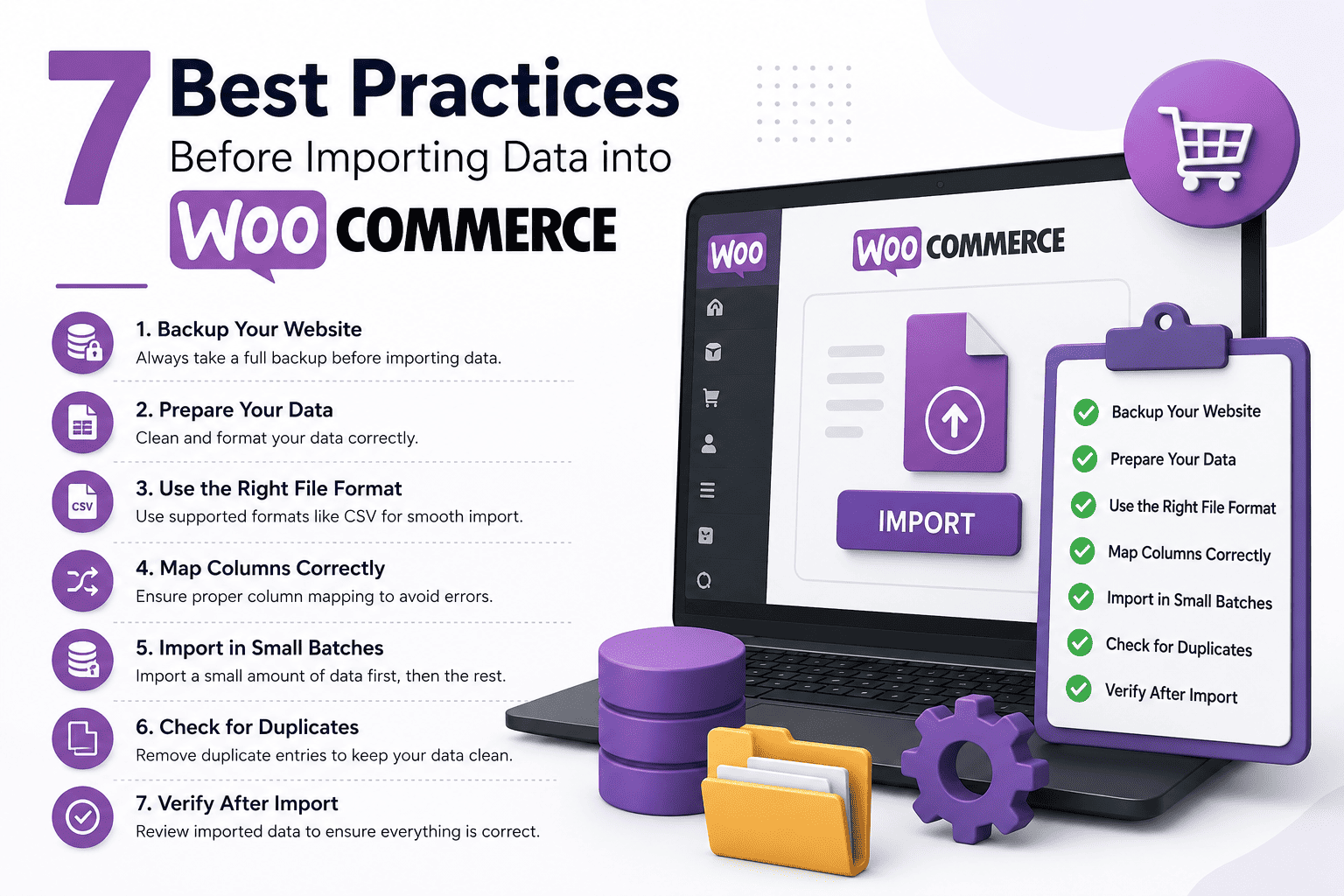

7 Best Practices Before Importing Data into WooCommerce
WooCommerce Data Import can save hours of manual work when you need to add products, update inventory, change prices, or move large amounts of store information. However, importing unprepared or incorrect data can create duplicate products, missing images, incorrect prices, invalid SKUs, and other problems that may affect your store.
Before starting a large WooCommerce import, it is important to prepare your data and follow a structured process. A few simple checks can help reduce errors and make the entire import workflow smoother. Here are seven practical best practices to follow before importing data into WooCommerce.
1. Backup Your WooCommerce Store
Always create a complete backup before beginning a major import. A backup gives you a recovery option if an import produces unexpected results or changes important store information.
Before importing products or other WooCommerce data, make sure your website files and database are safely backed up. This is particularly important when working with large product catalogues or making bulk changes to an existing store.
2. Validate Your CSV File
Clean and accurate data is essential for a successful WooCommerce import. Before uploading your CSV file, review every important field and check for missing or incorrect information.
Look for empty rows, missing values, incorrect prices, invalid SKUs, duplicate records, and broken image URLs. Cleaning the file before importing can reduce errors and prevent unnecessary corrections after the import.
A properly organised CSV file should contain the information required by your WooCommerce store and use consistent formatting throughout the spreadsheet.
3. Use Consistent Product SKUs
SKUs are important for identifying products and managing updates. Every product should have a consistent and unique SKU whenever possible.
Avoid creating duplicate SKUs because they can make product updates and inventory management more difficult. Establish a clear naming convention and use it consistently across your product catalogue.
A well-organised SKU structure can also make future imports and exports easier because products can be identified more reliably.
4. Optimise Product Images
Product images are another important part of WooCommerce Data Import. Large or incorrectly configured images can slow down the import process and create unnecessary problems.
Before importing images, compress large files where appropriate, use clear file names, verify image URLs, and maintain consistent image dimensions. Make sure the image URLs are publicly accessible if your import process requires WooCommerce to retrieve images from external locations.
Preparing your images in advance can help create a cleaner and more efficient product catalogue.
5. Check Column Mapping
Column mapping is one of the most important steps during a WooCommerce import. Your CSV columns need to correspond correctly with the appropriate WooCommerce fields.
For example, a product name should map to the product title field, while the price should map to the appropriate price field. Incorrect mapping can result in information appearing in the wrong location or important product data being missed.
Before starting the complete import, carefully review your mapping configuration and make sure every important column is connected to the correct WooCommerce field.
6. Test with a Small Sample
Avoid importing thousands of products immediately. Instead, perform a small test import first.
A sample of around 10–20 products can help you identify problems before they affect the entire catalogue. After the test, check product titles, prices, categories, images, SKUs, descriptions, and stock status.
If everything looks correct, you can proceed with the larger import. Testing first is a simple way to identify mapping or formatting problems before they become difficult to fix.
7. Save Your Import Templates
If you regularly perform WooCommerce imports, saving your import configuration as a reusable template can save time.
Templates can preserve settings such as column mapping, filters, and other import configurations. Instead of setting up the same workflow from the beginning every time, you can reuse an existing configuration and make adjustments when necessary.
This can make recurring product updates, inventory imports, and other data management tasks more consistent.
Common WooCommerce Import Mistakes to Avoid
Even with careful preparation, several common mistakes can cause problems during WooCommerce data import. Avoid importing duplicate products, using incorrect category mappings, forgetting featured images, applying incorrect tax settings, or importing invalid product variations.
Another common mistake is starting a large import without creating a backup or testing a small sample first. Taking time to validate your data and configuration can prevent many unnecessary issues.
Make WooCommerce Data Import Easier
A structured import process can make WooCommerce store management more efficient. By backing up your website, validating your CSV data, maintaining consistent SKUs, optimising images, checking column mappings, testing a small sample, and saving reusable templates, you can reduce errors and make future imports easier to manage.
For businesses that frequently handle large product catalogues or multiple types of WooCommerce data, using a dedicated WooCommerce import and export solution can further simplify these workflows. With the right preparation and tools, store owners, developers, and agencies can manage products and other store information more efficiently while reducing repetitive manual work.




