


WooCommerce Import Export Plugin: Manage Store Data in One Place
WooCommerce stores are not struggling because data exists. They struggle because data is constantly moving.
New products arrive from suppliers. Orders must be exported for accounting, shipping, or internal reporting. Each purchase adds customer data. Coupons serve a single campaign. Reviews must be preserved during migration. Categories and tags must be maintained to keep the catalog clean and manageable.
At a small scale, these tasks could look easy. But once a store handles hundreds or thousands of records, manual data work inside the WordPress dashboard becomes slow and risky. A simple export may require filters, column selection, date ranges, and status conditions. A simple import may need mapping, duplicate handling, validation, and a clear record of what was processed.
That is where a WooCommerce import export plugin becomes useful.
Woo Import Export provides store owners, developers, and agencies with a single workflow for importing, exporting, mapping, filtering, and tracking WooCommerce data. Instead of using separate tools for products, orders, customers, coupons, reviews, categories, and tags, teams can manage key store records in a single system plugin.
In this guide, we will cover how Woo Import Export handles common data tasks, advanced import export workflows, intelligent column mapping, reusable templates, logs, and premium automation features.
Why WooCommerce Store Data Gets Complicated
A WooCommerce store is more than just a place to sell products. Every sale, campaign, catalog update, and customer interaction has data behind it that needs to be stored, moved, updated, checked, and reused.
Products include prices, stock values, SKUs, images, descriptions, categories, tags, attributes, and variations. Orders contain customer information, payment status, shipping information, totals, taxes, dates, and fulfillment information. The customer records keep increasing with every purchase. Coupons must be created, managed, and sometimes moved between stores. When you migrate, reviews need to stay attached to the right products. Have clean categories and tags so the catalog is easy to manage later.
Most of this work looks to be possible on a small scale. You can edit a limited number of products, export a limited number of orders, or create coupon codes manually from the WordPress dashboard. The trouble begins when these small tasks become recurring workflows.
Easy ways to update 20 products. Updating the prices, stock quantities, categories, attributes, and images of 2,000 products requires a different level of control. “Exporting one order is easy. You shouldn’t have to clean a messy spreadsheet after exporting completed orders for a date range for accounts, logistics, or reporting.
Even more tension on the bigger stores. Woo Import Export is designed for bulk data operations in WooCommerce and can support stores with up to 1 million records, depending on server capacity, file size, and configuration. At that scale, import and export workflows need more than a download or upload option. They want filtering, column selection, smart mapping, duplicate management, background processing, and detailed logs that show exactly what happened.
The size of the data isn’t the real challenge. The danger is that it may get out of hand.
Incorrect use of a column can cause data to be placed in the wrong field. A missing filter can leak more information than it should. A duplicate record can cause confusion during migration. A bad import without good logs can leave teams scratching their heads about what went wrong.
This is why growing WooCommerce stores need a structured import export workflow, one that helps teams move data accurately, process records in bulk, and keep every operation clear, traceable, and easier to manage.
What Is Woo Import Export?
Woo Import Export is a WooCommerce data import and export plugin that helps store owners manage products, orders, customers, coupons, reviews, categories, and tags in one workflow.
Import and export key store data from a single plugin screen, rather than using separate tools for different WooCommerce records. Use it for store migration, bulk product updates, order exports, customer data transfer, coupon management, review migration, and catalog organization.
The plugin supports two workflow types: Quick import export is for simple cases where users want to upload or download data with minimal setup. Advanced import export is for users who need more control over filters, column selection, field mapping, reusable templates, and activity logs.
Woo Import Export is useful for 3 major groups:
It is used by store owners to manage daily WooCommerce data tasks, such as product updates, order exports, and customer record transfers.
Agencies use it to migrate WooCommerce stores, prepare client data, and repeat import export workflows across multiple projects, especially when consistency matters at scale.
Developers use it for structured data, custom fields, large records, and advanced import export needs, where more complex data makes control more important.
A good WooCommerce import export plugin should do more than just move data between files and a store. It should help users know what data to process at scale, how fields should be mapped at scale, how duplicates should be handled at scale, and how each import or export job can be reviewed later.
Woo Import Export is built around that workflow: choose the data type, choose quick or advanced mode, upload or export the file, apply filters, map fields, save templates, and view the final result in the logs, with advanced steps available when the workflow requires more control.
Step 1: Select the WooCommerce Data Type
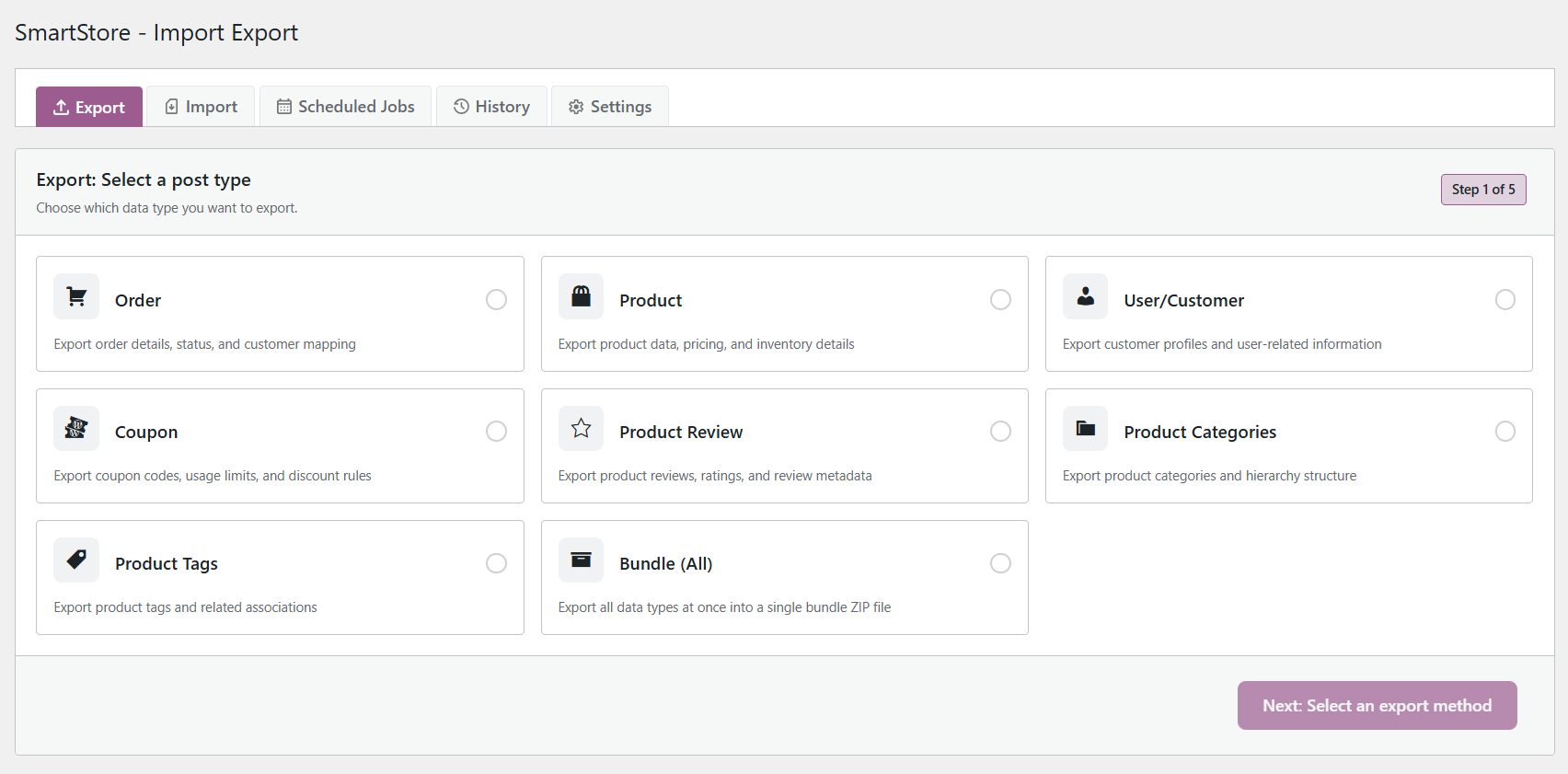
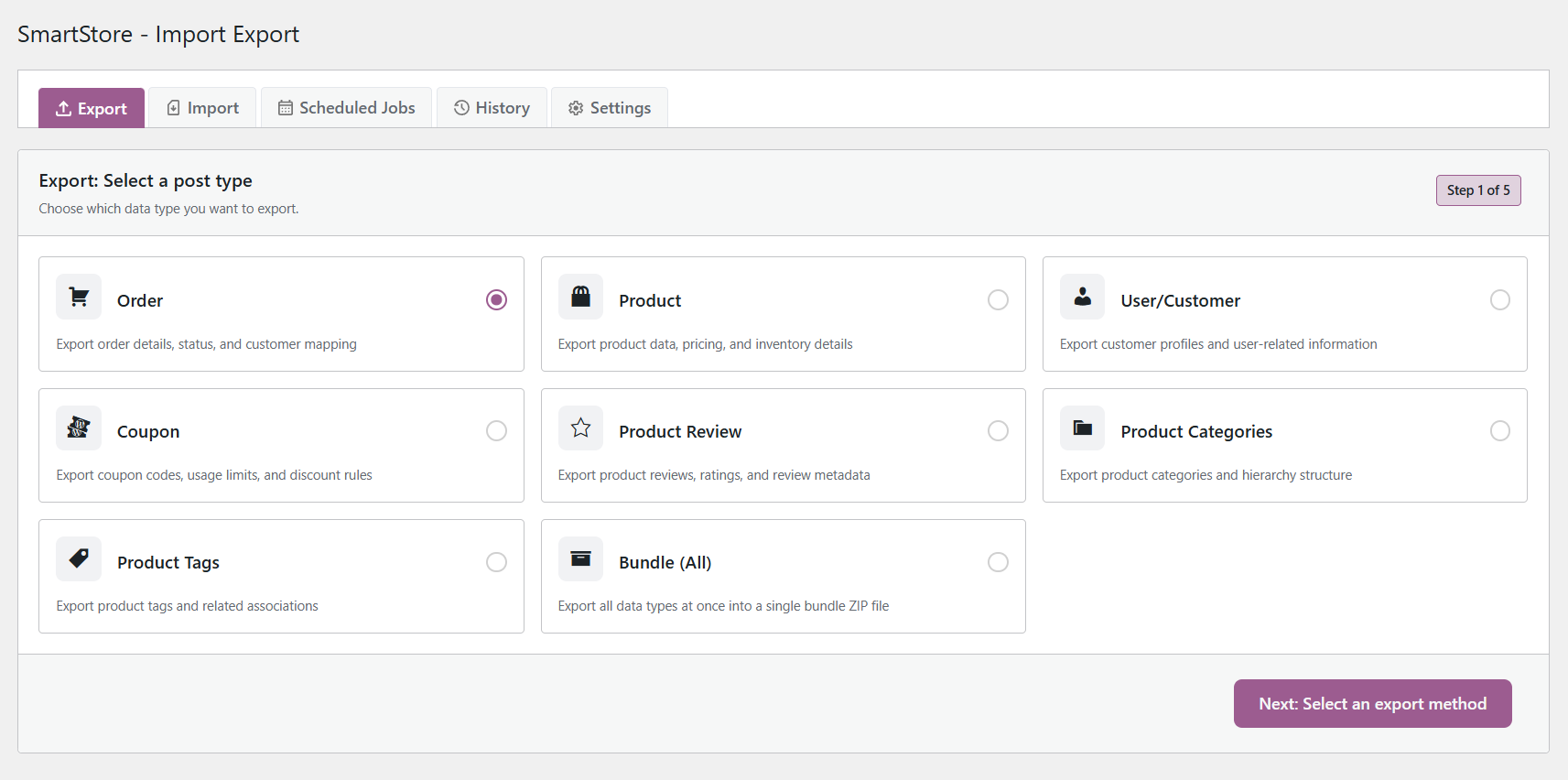
The first step in Woo Import Export is to choose the type of WooCommerce data you want to import or export.
This is important because not all records are stored in the same way in WooCommerce. A product file is not the same as an order file. Coupon data differs from customer data. Product reviews, categories, and tags also have their own fields and handling rules.
Woo Import Export separates these data types before the workflow begins, so users can start the appropriate import or export process for each record type rather than treating all store data as a single generic file.
The plugin lets you import and export products, orders, users, coupons, product reviews, categories, and tags.
Each data type is useful for different store tasks. Products are usually managed during catalog updates, supplier imports, inventory changes, and store migration. Orders are frequently exported for accounting, shipping, reporting, and operational teams. Customers and users can be imported or migrated in bulk. Coupons can help set up campaigns. Product reviews help maintain social proof during store migration. Categories and tags organize the product catalog.
By selecting the data type first, Woo Import Export displays the relevant fields, filters, mapping options, and export settings for that record type.
This makes the process easier for store owners. It also makes WooCommerce data management easier for agencies and developers working on large stores, client sites, or recurring import export jobs.
Step 2: Choose Quick or Advanced Import Export Mode
Next, after selecting the WooCommerce data type, choose how much control the import or export job needs.
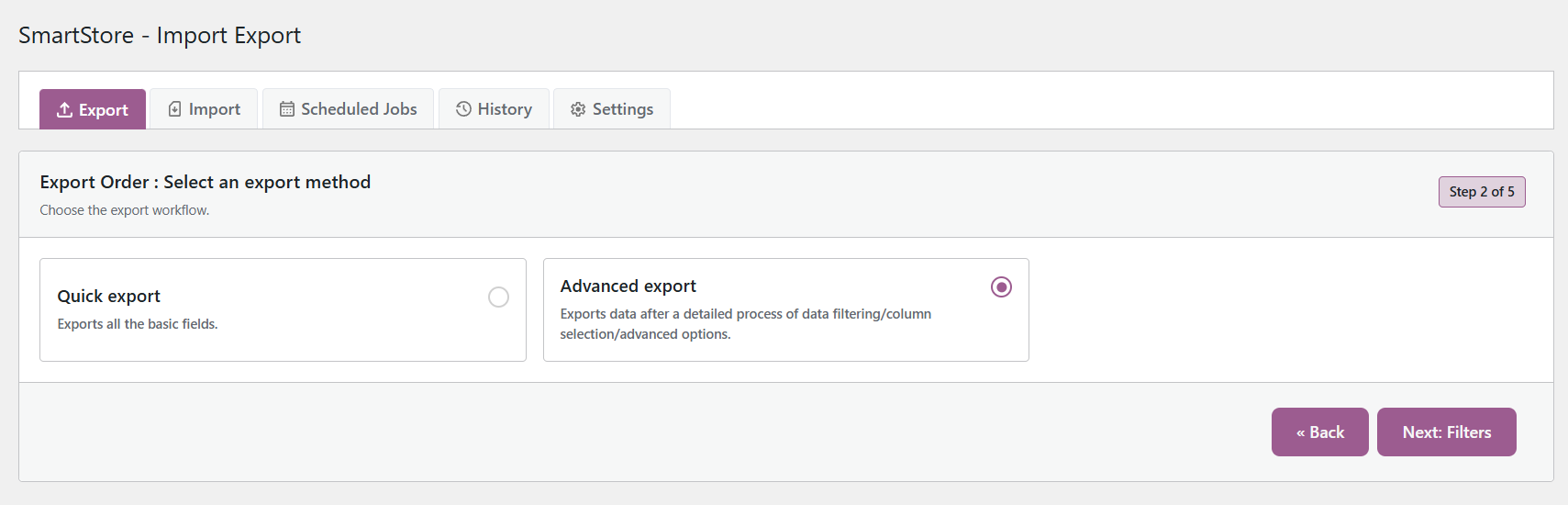
Woo Import Export offers two workflow options for users: Quick Import/Export and Advanced Import Export. The plugin is thus still useful for simple store tasks as well as more controlled data operations.
Quick Import/Export is meant for clean, straightforward jobs. It is convenient when the file is prepared, the data type is clear, and the user does not need to tweak filters, mapping rules, or advanced settings. For instance, a store owner can use quick mode to import a CSV of a supplier product, export a customer list, download a basic order file, or transfer standard WooCommerce data between stores.
So the value of quick mode is that it is fast. It removes unnecessary setup if the task doesn’t need any extra configuration.
Use Advanced Import Export for workflows that require specific details before records are processed. This mode is useful when users select to filter data, specify which export columns to export, review field mapping, set record limits, save the configuration, and specify how the plugin should handle existing records.
For example, in accounting, a store team may only want to export completed orders for a selected date range. An agency may need to import customer records and verify mapped fields before executing the job. A developer working with larger datasets where accuracy is more important than speed may use the advanced mode.
The difference is simple – quick mode lets users perform standard import export tasks more quickly, while advanced mode gives teams more control over what is being processed and how it is handled.
This two-mode setup makes Woo Import Export more flexible. Store owners can use it for everyday data tasks, while agencies and developers can use the same workflow for more detailed WooCommerce import/export operations.
Step 3: Upload or Export Mode
The second step is to choose the file action: import data to WooCommerce or export data from WooCommerce after selecting the data type and workflow mode.
For an import task, users upload a prepared CSV file with the records they want to import into the store. The file will contain product information, order data, customer info, coupon records, reviews, categories, or tags, depending on the data type you select. File quality is important, as you want each column to match the correct WooCommerce field before the import.
In an export task, the flow runs in reverse. Woo Import Export lets users select the data they want to export from WooCommerce and generates a downloadable file for editing, reporting, sharing with internal teams, or moving data into another store workflow.
This is important because this file will serve as the connection point between WooCommerce and external data sources. A store migration file, a customer list, an accounting order export, or a supplier product sheet needs a clean structure before you can work safely with the data.
Woo Import Export helps you keep this process organized by guiding you through a structured import/export workflow, rather than forcing you to copy and paste or manually update records in the WordPress dashboard.
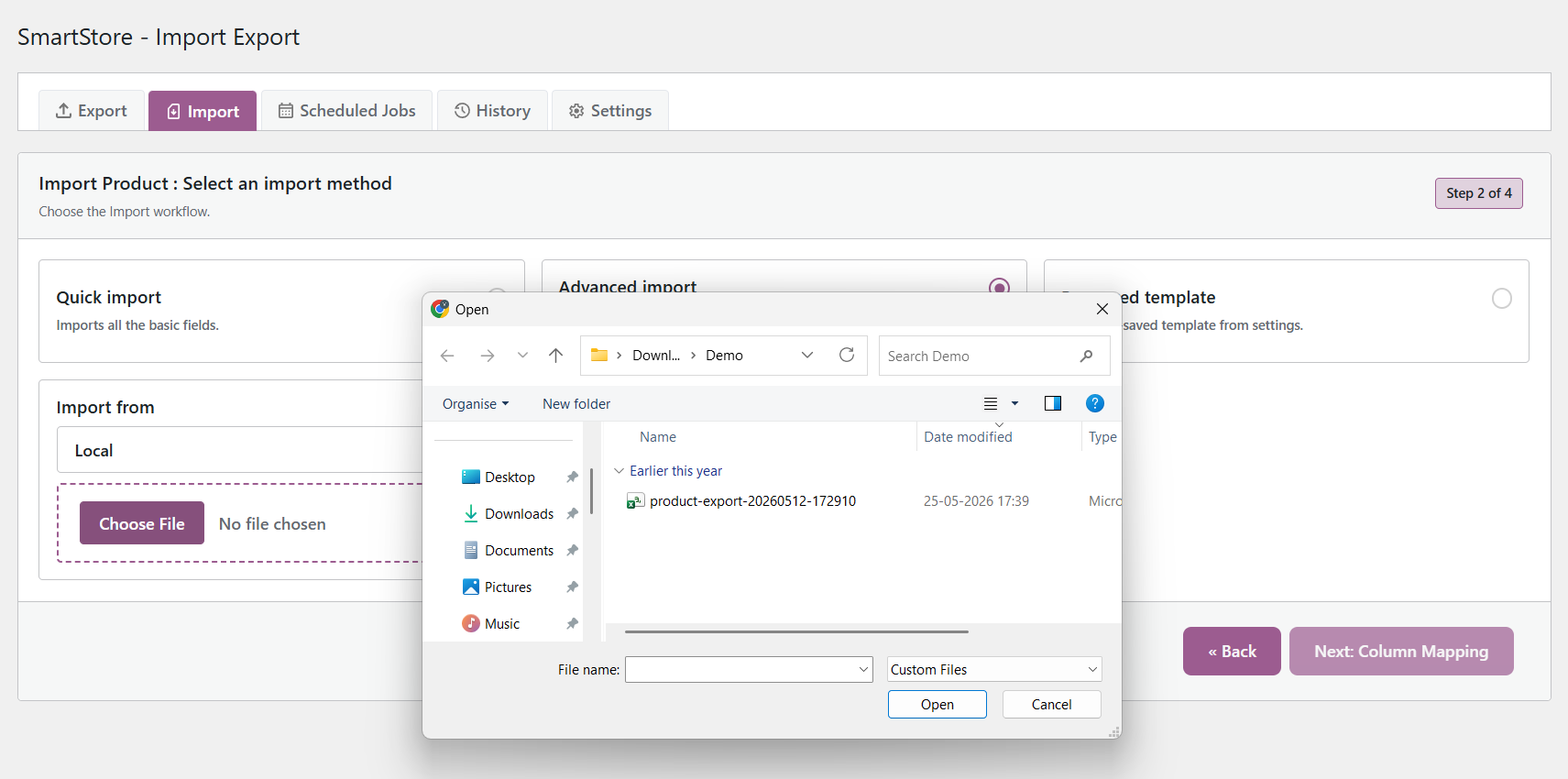
Step 4: Coose and Filter Columns
A good export does not give the user more data than they need. It should give them the right data in the right structure, with less cleanup after the file is downloaded.
This is why filters and column selection are important in Woo Import Export.
Instead of exporting your entire WooCommerce database and then sorting it in a spreadsheet, users can filter the export before the file is generated. This makes the output cleaner, lighter, and more useful for the team that needs it.
For instance, an accounts team only wants completed orders for a specific date range. A logistics team might need orders by status, customer info, and shipping details. A catalogue manager may want products from a given category or product type. Instead of exporting all user records, a store owner might want a specific list of customers.
Filters allow users to specify “what records” to include.
Column selection lets users choose which fields to view in the file.
This difference is important. A filtered export would be to export only completed orders from last month. Column selection then determines whether the file should include order ID, customer name, billing email, order total, payment status, shipping address, or other required fields.
These controls help teams avoid manual spreadsheet cleanup, make files easier to read, and reduce unnecessary data.
This is particularly useful for large WooCommerce stores where exporting all records and all files can produce large files that are difficult to handle. Woo Import Export allows users to generate targeted export files for accounting. logistics, reporting, catalog management, migration, and internal operations with the appropriate filters and selected columns.
That means users aren’t just exporting data in a handy workflow. They prepare usable WooCommerce data before it leaves the store.
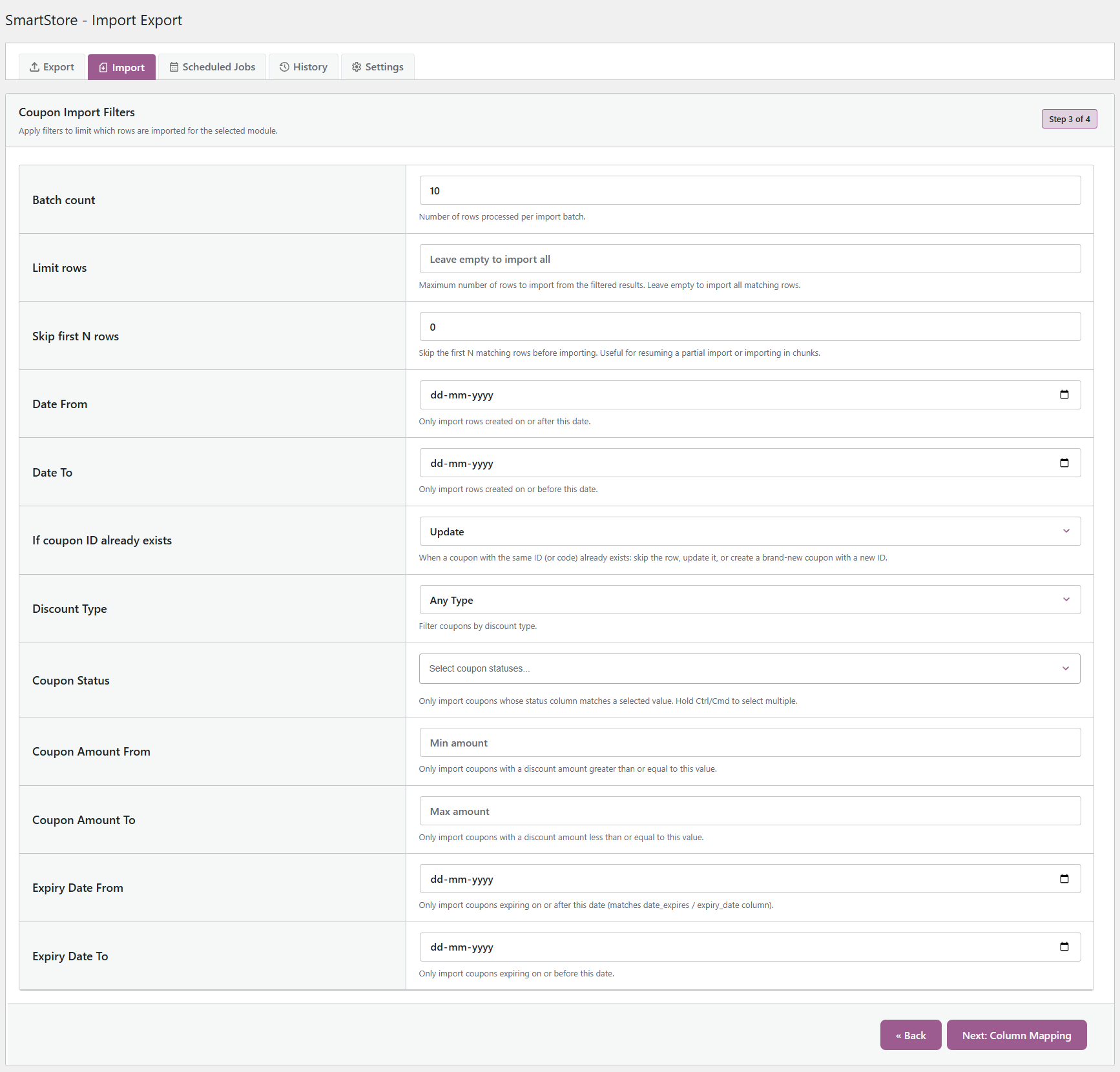
Step 5: Map File Columns to WooCommerce Fields
You don’t need to upload a file to import WooCommerce data. And the file must speak the same language as WooCommerce.
For instance, a supplier file could have an item_name column. You can export the same value from another platform. A spreadsheet with a simpler label, like name, can be created by the store team. All three columns can be the product title, but WooCommerce needs that data in the correct field during import.
That’s where clever column mapping comes in.
Woo Import Export has automatic and manual column mapping. If possible, the plugin will match familiar column names to the right WooCommerce fields once a file is uploaded. If some columns can’t be matched automatically, users can review them and manually link each file column to the right WooCommerce field before running the import.
This step helps you avoid one of the most common import problems: good data going to the wrong place.
For example, the SKU should be mapped to the SKU. Price should point to the regular price. stock_quantity should be mapped to stock quantity. Map the customer email to the appropriate customer email field. Order status should match the proper order status field.
Column mapping is a last control point for users before data gets written to the store. It helps teams review the file structure, confirm important fields, and reduce errors caused by mismatched column names.
This helps suppliers file more easily for store owners. It makes data migration and bulk-data workflows more predictable for agencies and developers. Users can bypass the manual reshaping of each spreadsheet before import by mapping the file structure within Woo Import Export and proceeding with a cleaner, safer workflow.
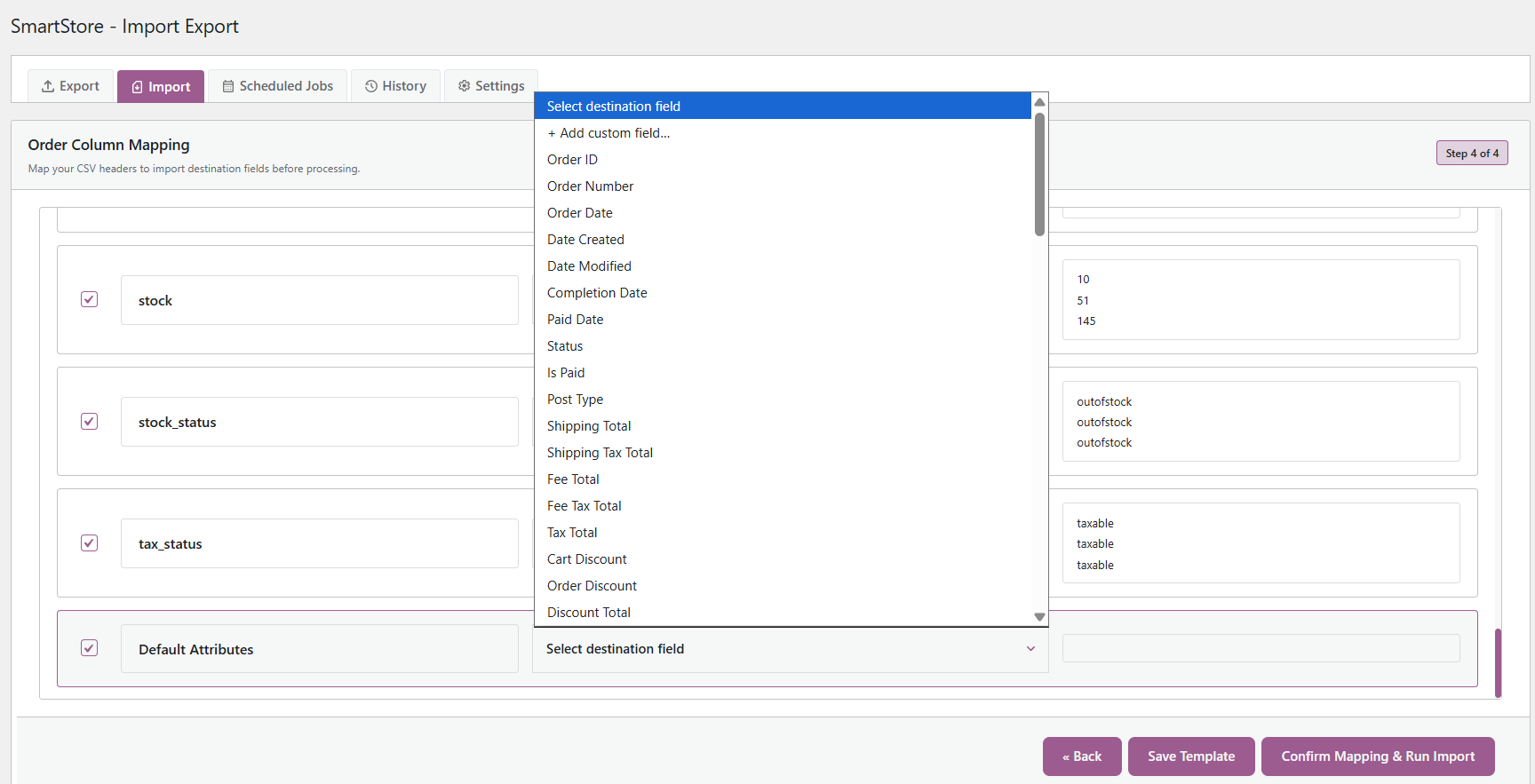
Step 6: Save Templates for Repeating Jobs
No suggestions. The most valuable WooCommerce workflows are often the ones that teams repeat.
You can export completed orders weekly for accounting purposes. Every month, a catalogue team might import supplier product files that have the same field structure. A marketing team may prepare coupon data for seasonal campaigns. An agency can use the same import export setup for multiple client stores.
Without templates, you’re doing every task from scratch each time. Users need to select the data type again, apply the same filters, select the same columns, review the same settings, and ensure that nothing is missed before running the job.
Woo Import Export cuts down on that repetitive setup with reusable import/export templates.
A template is a record of the configuration of an import or export workflow that can be reused later. This can include the selected data type, filters, column choices, and other workflow settings. Rather than building the process from scratch, users can open a saved template and be more confident as they step through a familiar setup.
This matters because consistency is what makes repeated data work possible. The columns shouldn’t change by mistake if the accounts team expects the same order export format every week. If the supplier product import has the same structure, then it should not be created manually every time. If an agency is running multiple stores, saved templates help avoid setup errors.
Reusable templates speed up data operations in WooCommerce, but the greatest value lies in the control they provide. They help teams convert repetitive import/export tasks into reliable workflows rather than one-off manual actions.
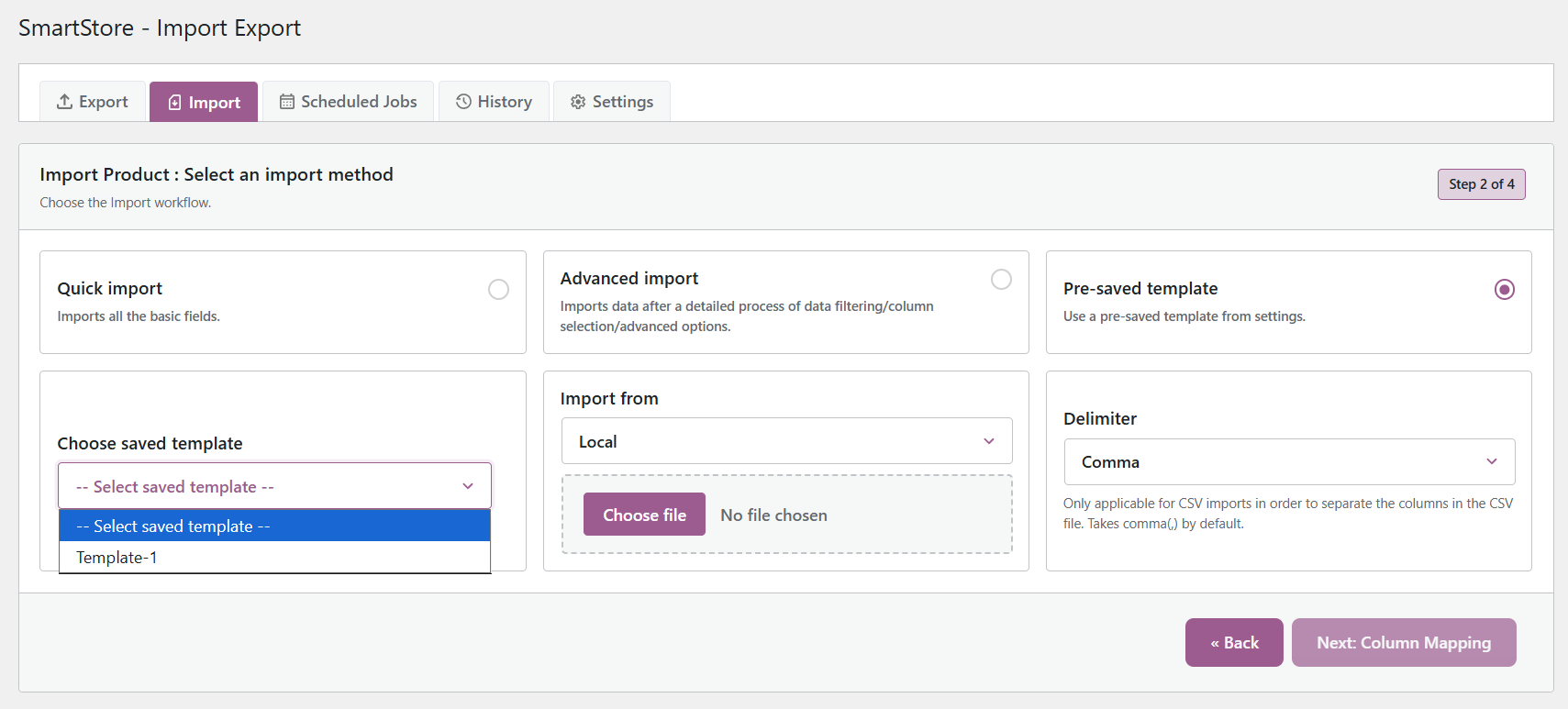
Step 7: Track Everything With Logs and History
Import and export tasks should never be a black box. When store data is moved, updated, or exported, users need to know what happened during the process.
Woo Import Export has import and export logs and history, so teams can view what was done previously, instead of guessing if a job was done correctly.
You can monitor each import or export workflow with helpful information, such as the data type processed, job status, execution time, processed records, and activity history. This gives store owners, agencies, and developers a more transparent view of each data operation as it is executing.
This is particularly true if you’re working with large WooCommerce stores. A small import may be easy to check manually, but a large product import, customer transfer, coupon upload, or order export requires proper tracking. If there is a failure, the user should be able to identify it, not find it in a spreadsheet, or repeat the process without context.
Logs also help teams troubleshoot common workflow issues. A file could be missing values, have incorrect columns, have duplicate records, or have data that doesn’t fit the expected format. Users can review results with history and logs, understand what was processed, and take the next step with greater confidence.
This level of visibility is important for growing WooCommerce stores. It turns import and export activities into a traceable workflow, with every major data movement recorded for later review.



