

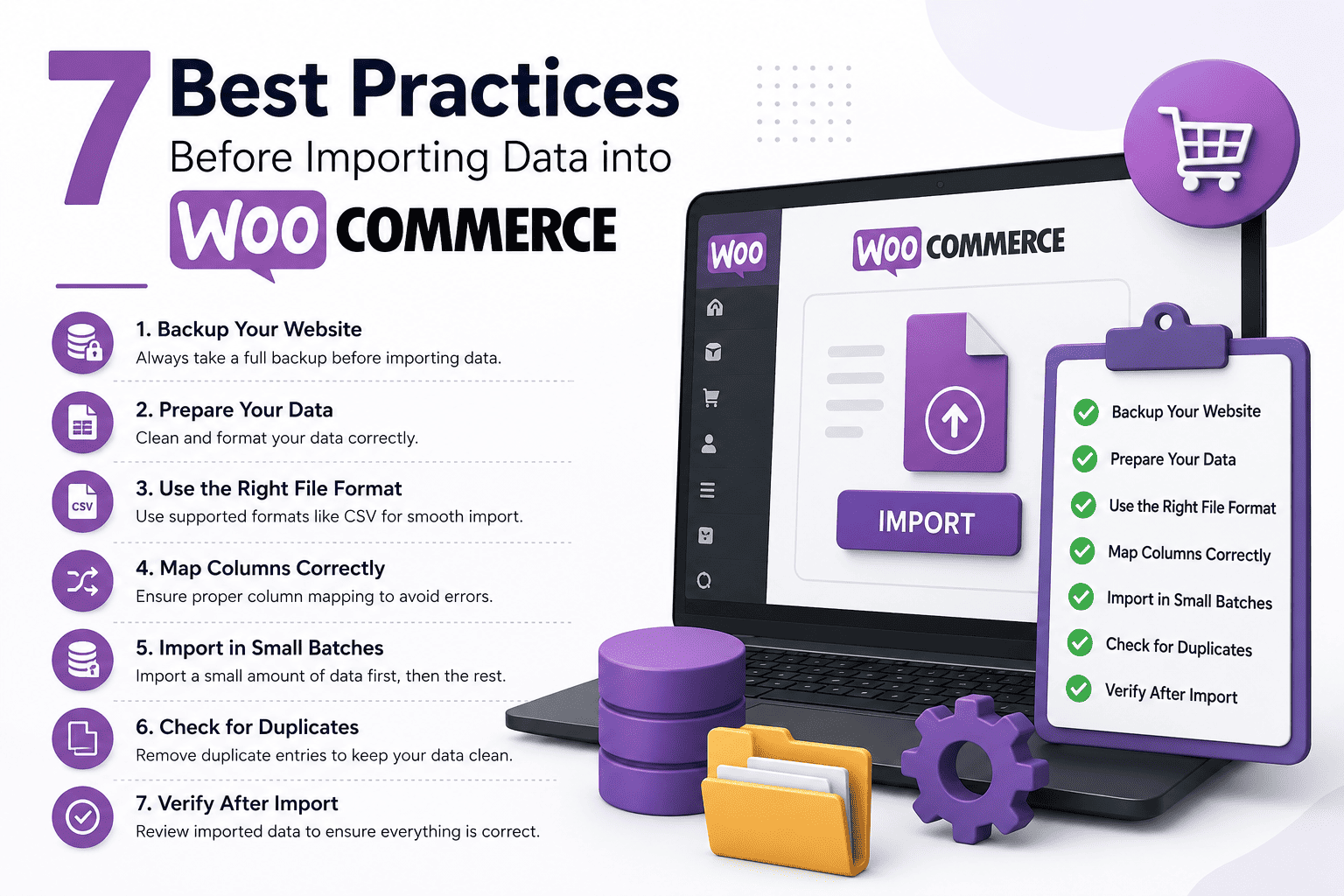

Importing products into WooCommerce can save hours of manual work, but poor-quality data can lead to duplicate products, missing images, incorrect pricing, and broken customer experiences.
Before starting your next import, follow these seven best practices to ensure a smooth and error-free process.
1. Backup Your Store
Always create a complete backup before importing data.
This allows you to restore your store if something goes wrong during the import process.
2. Validate Your CSV File
Double-check your spreadsheet for:
- Missing values
- Empty rows
- Incorrect pricing
- Invalid SKUs
- Broken image URLs
Clean data leads to successful imports.
3. Use Consistent Product SKUs
SKUs are essential for identifying products during updates.
Avoid duplicate SKUs and maintain a consistent naming convention.
4. Optimize Product Images
Large images can slow down imports.
Before importing:
- Compress images
- Use proper file names
- Verify image URLs
- Maintain consistent dimensions
5. Check Column Mapping
Incorrect column mapping is one of the biggest causes of failed imports.
Ensure every CSV column matches the correct WooCommerce field before starting the import.
6. Test with a Small Sample
Instead of importing thousands of products immediately, test with 10–20 products first.
Verify:
- Product titles
- Prices
- Categories
- Images
- Stock status
Once everything looks correct, proceed with the full import.
7. Save Import Templates
If you perform regular imports, save your import settings as templates.
This eliminates repetitive configuration and reduces the chance of human error.
Common Mistakes to Avoid
- Importing duplicate products
- Incorrect category mapping
- Missing featured images
- Wrong tax settings
- Invalid product variations
- Forgetting to backup



